
Tip & Trick
Struggling to find files in your Microsoft ecosystem? Clear, consistent file naming saves time and reduces frustration. These seven best practices will transform your file organization—whether you use Windows, Office 365, or OneDrive—into a streamlined workflow.
Date-Based Prefix Format for All Files

Need to track deadlines or milestone-based projects? A date-based prefix like YYYYMMDDProjectNameStatus.docx ensures files sort chronologically in Windows Explorer or SharePoint. This format eliminates guesswork when searching for the latest version of a legal contract or quarterly report.
The key is using 8-digit dates (e.g., 20240515) followed by an underscore, then the project name and status. This works seamlessly with Microsoft’s built-in sorting and integrates perfectly with SharePoint libraries, where date columns auto-populate from filenames. For example, 20240515ContractDraftv2.pdf clearly shows it’s a May 15th revision.
Perfect for legal teams, project managers, or anyone juggling time-sensitive documents. It’s also a lifesaver when auditing file histories in SharePoint or OneDrive. ✨
Project-Code Naming with Consistent Separators

Collaborative chaos disappears when your team uses underscores () or hyphens (-) to separate project codes from file types. Unlike ambiguous naming, this method ensures every file—whether a PowerPoint presentation, Excel spreadsheet, or Teams attachment—remains instantly recognizable and searchable.
For example, MKT2024Q2Report.xlsx (underscore) or MKT-2024-Q2-Report.xlsx (hyphen) clearly separates the project code (MKT), timeframe (2024_Q2), and file type (.xlsx). This consistency prevents errors when sharing files across Microsoft 365 apps, where separators can break file associations or metadata parsing.
Teams working on cross-functional projects—especially those using SharePoint libraries or Teams channels—will benefit most from this approach, as it reduces miscommunication and speeds up file retrieval. ✨
File Type Extensions for Every Document

Ever opened a file in OneDrive or SharePoint, only to realize it’s not what you expected because the extension was missing? That’s a common trap—especially when dealing with macros in Outlook attachments or shared documents where file types matter.
Always include the full extension—like .docx, .pdf, or .pptx—to avoid confusion. OneDrive and SharePoint rely on these extensions to render files correctly, and Outlook attachments with macros (e.g., .xlsm) need them to execute safely. Skipping the extension can turn a Word file into a plain text file or block critical functionality.
This rule is a game-changer for teams collaborating in Microsoft 365, where files move between platforms frequently. ⚡
Version Control with Suffix Numbers
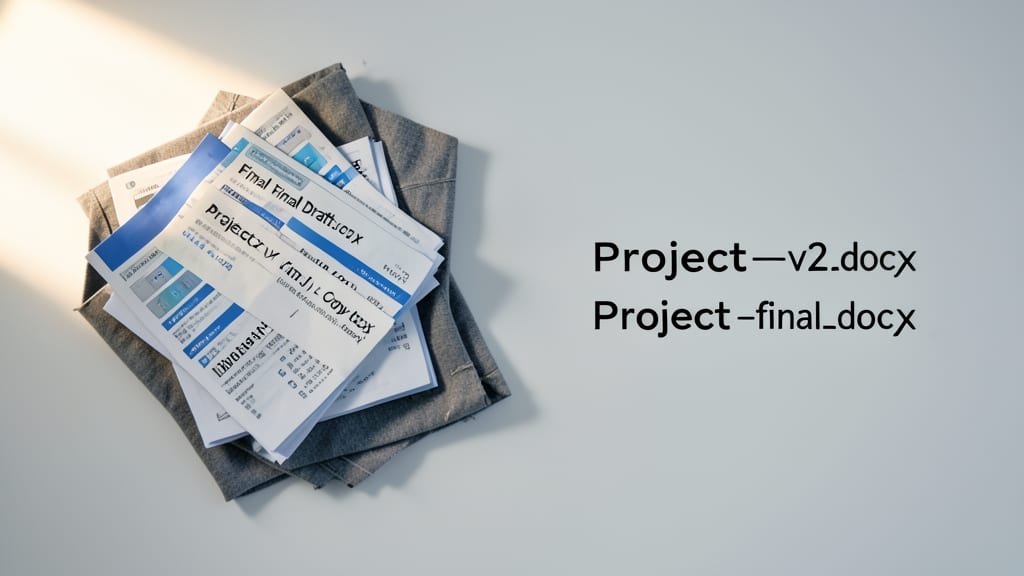
Tired of digging through folders full of "FinalFinalDraft.docx" chaos? Suffix version control keeps your Microsoft 365 files organized without creating endless subfolders. Instead of "Projectv1.docx" and "Projectv2.docx" cluttering your workspace, simply append -v2, -final, or -revised to track edits visually.
This method works seamlessly with Word, Excel, and PowerPoint—just update the filename as you save. Microsoft 365’s built-in version history still tracks changes, while the suffixes provide an instant visual cue about the file’s status. For example, "Contract-v1.docx" becomes "Contract-final.docx" when approved, making it crystal clear which version is current. ⚡
Perfect for freelancers, marketers, or teams collaborating on iterative documents like proposals or reports. No extra tools needed—just a simple, human-readable system that works across Windows, OneDrive, and SharePoint. 💡
Avoid Special Characters and Spaces

Automation scripts and batch processing can break spectacularly when your filenames contain spaces or symbols like #, $, or %. These characters cause errors in PowerShell, VBScript, and even Windows Command Prompt, turning simple tasks into headaches.
Replace spaces with underscores (e.g., TaxReport2024_Final.pdf instead of Tax Report 2024 #Final.pdf) and avoid symbols entirely. Microsoft’s own tools—like SharePoint, OneDrive, and Azure DevOps—handle these cleaner names flawlessly, while also preventing issues when files are moved or synced.
Developers, sysadmins, and even power users running bulk operations will appreciate how this small tweak prevents script failures and keeps workflows smooth. 💻
Department-Specific Prefixes for Teams

Tired of digging through shared folders to find the right file? Department-specific prefixes like HR, FIN, or MKT instantly categorize documents in SharePoint or Teams, cutting search time in half.
Add a two-letter department code followed by an underscore (e.g., MKT2024Q3Report.xlsx) to files stored in shared drives. This works seamlessly with Microsoft’s built-in search filters, letting you locate files by department with just a few keystrokes. Teams channels benefit especially—files automatically sort by prefix, making collaboration effortless.
Perfect for enterprises with cross-functional teams, this method keeps files organized without requiring complex folder structures. ⚡
Metadata Tags Over File Names
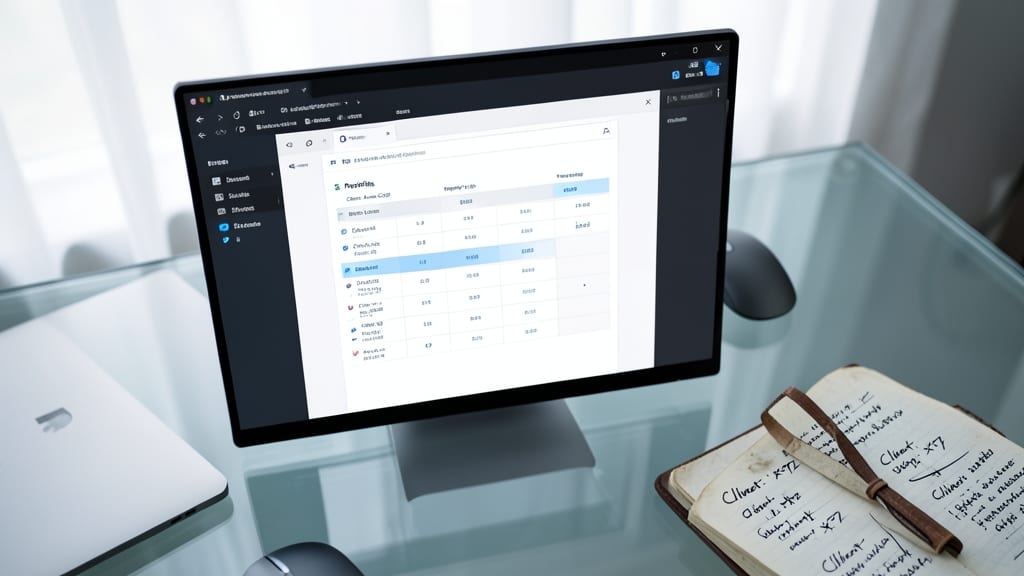
Tired of filenames getting messy with endless prefixes and suffixes? Metadata tags in Microsoft’s built-in file properties offer a cleaner solution—hidden but powerful. Instead of cluttering names with "ClientAcmev2_FINAL," you can simply tag documents with Client: Acme Corp or Priority: High in the file’s details.
Right-click any file in Windows Explorer, choose Properties, and fill out fields like Title, Subject, or Keywords. These tags sync seamlessly with Outlook emails and SharePoint libraries, making searches lightning-fast. For example, filter all high-priority documents in SharePoint with a single click, or sort Outlook attachments by client name without renaming anything.
This method is perfect for enterprise teams managing client projects or legal documents, where file names alone can’t capture all the context. It’s also a lifesaver for freelancers juggling multiple clients. ✨