
PowerPoint
PowerPoint transitions can transform a static presentation into a dynamic, professional slideshow. These seven transition effects help maintain audience engagement while keeping your flow polished and purposeful—without looking overly flashy.
Fade Transition for Subtle Professionalism
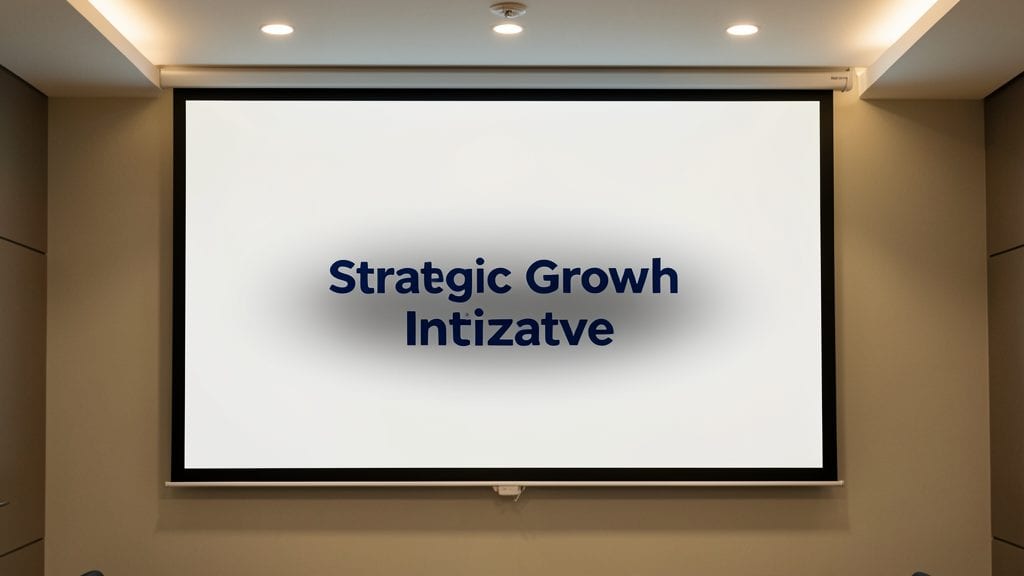
Need a transition that keeps your corporate presentation polished without stealing focus? The Fade effect is the gold standard for professionalism—smooth, distraction-free, and universally readable across devices.
This classic transition gently dissolves one slide into the next, ensuring text and data remain crisp while adding a subtle touch of sophistication. It works seamlessly in PowerPoint 2010 and later, including the latest PowerPoint 365, and pairs perfectly with Subtle speed for a refined look. The simplicity also makes it accessibility-friendly, avoiding motion issues for viewers with sensitivity to abrupt visual changes.
Perfect for boardroom pitches, financial reports, or any slide deck where clarity trumps flash. Use it consistently for cohesion, or sparingly to emphasize key sections. ✨
Slide Morph for Seamless Data Visualization
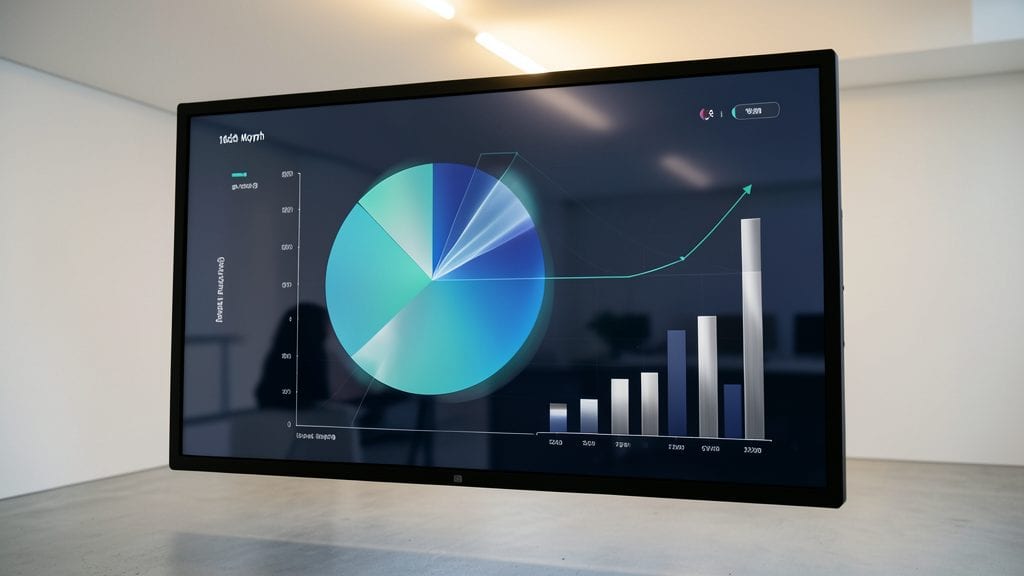
When your slides pack complex data—think evolving pie charts or shifting bar graphs—Slide Morph turns static visuals into fluid storytelling. Unlike abrupt jumps or fades, this transition smoothly interpolates between elements, letting audiences focus on insights rather than disruption.
Exclusive to PowerPoint 365, Morph works best with shapes, charts, and text boxes that share consistent structures. The transition animates changes in size, position, or color while preserving layout integrity, making it ideal for financial reports or scientific comparisons. Pro tip: Use the "Morph" button in the Transitions tab to preview changes before committing.
Data analysts and educators will love this for interactive reports, while marketers can use it to highlight before/after comparisons. Just ensure your source and target slides align structurally for the smoothest effect. ✨
Push Transition for Dynamic Storytelling
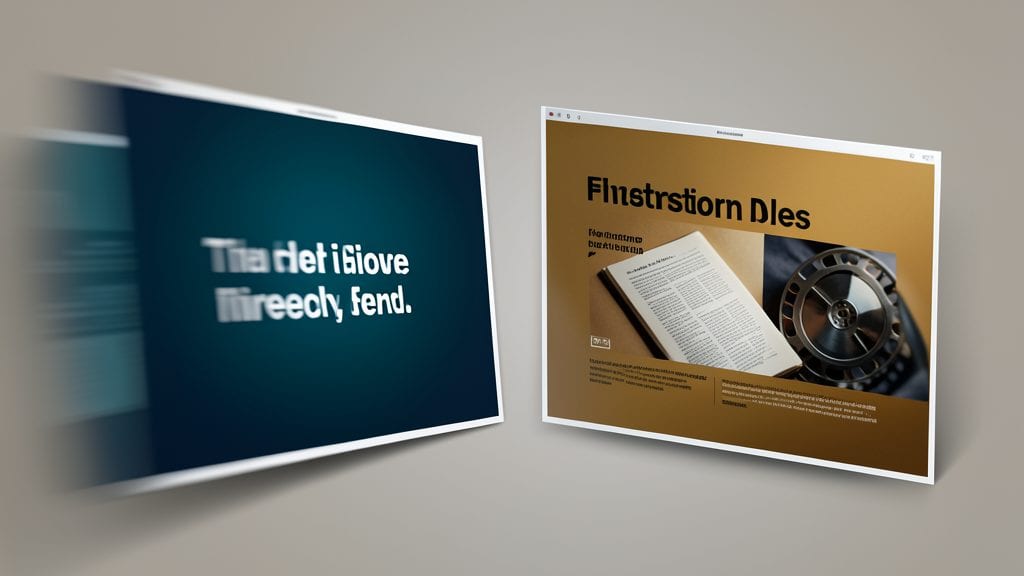
Want to turn your presentation into a gripping narrative? The Push Transition in PowerPoint delivers that cinematic punch by sliding one slide out of view while the next glides in from the opposite side. This directional motion creates intentional pacing—ideal for storytelling where each slide builds on the last.
Available in left-to-right, right-to-left, up, or down directions, this transition works best with subtle timing (0.5–1.5 seconds) to avoid distracting your audience. Unlike morphing effects, Push maintains clear visual separation between slides, making it perfect for key plot points or thematic shifts in your presentation.
Storytellers, educators, and marketers will appreciate how this transition enhances narrative flow—just don’t overuse it, or you’ll risk overwhelming your viewers. ✨
Wipe Transition for Clean Breakthroughs
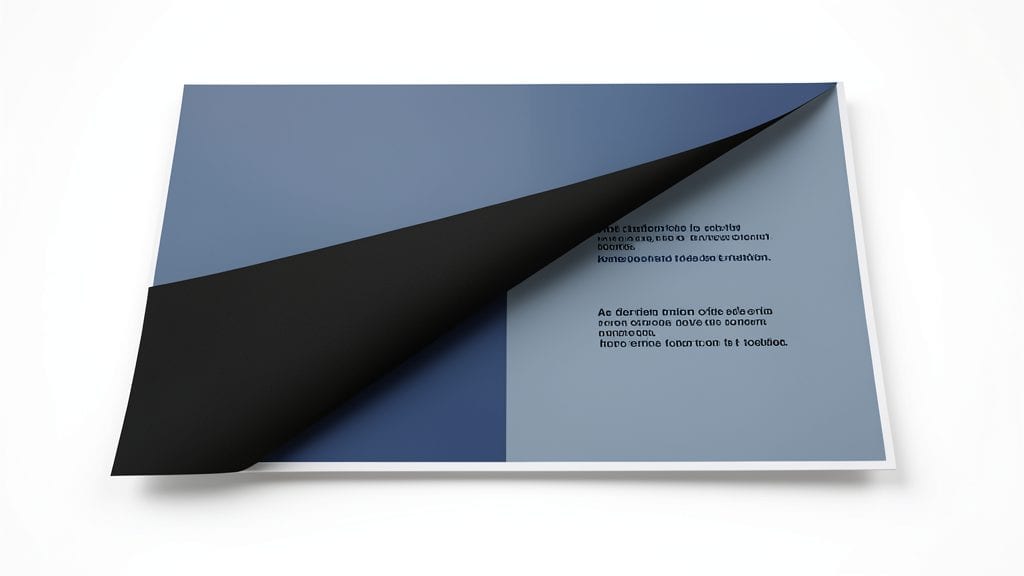
Need a sharp, intentional pause between sections of your presentation? The Wipe transition delivers exactly that—a clean, directional shift that signals a new topic or speaker without overwhelming your audience.
Available in four directions (left, right, up, down), this transition lets you control the flow visually. Unlike morphing or fading, it creates a deliberate break—perfect for transitions between major sections, like shifting from data to conclusions or handing off to a colleague. The customizable speed ensures it never feels abrupt or distracting.
Best for structured presentations—think training sessions, academic lectures, or business reviews where clarity and pacing matter most. Use it to reinforce transitions without stealing focus from your content. ✨
Zoom Transition for Highlighting Key Slides
Need to make your audience lean in during that pivotal moment? The Zoom Transition delivers a cinematic zoom effect, shrinking your current slide into a thumbnail before expanding it to full screen for the next. This isn’t just eye candy—it’s a deliberate way to signal importance, like your conclusion or a standout statistic.
With customizable zoom speed and direction (in or out), you control how dramatic the reveal feels. Pair it with a bold background or high-contrast visuals to maximize impact. Just remember: one well-placed zoom beats a dozen overused transitions. PowerPoint’s built-in timing tools let you sync it perfectly with your delivery.
Perfect for speakers who want to highlight key slides without losing focus—think keynote speakers, trainers, or anyone delivering a high-stakes pitch. Use it once per presentation to avoid overwhelming your audience. ✨
Split Transition for Dramatic Reveals
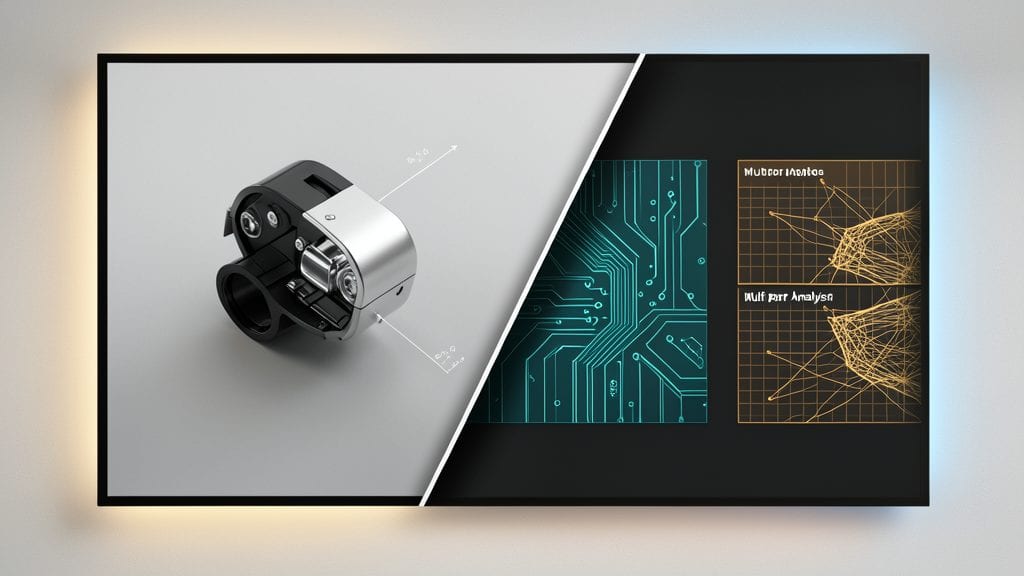
When you need to reveal intricate details—like comparing two product designs or unveiling a multi-part analysis—Split Transition delivers a cinematic reveal without overwhelming your audience. Unlike other transitions that move slides as a whole, this effect divides the screen into customizable sections (2-4 panels) before merging them into the next slide.
You can control the split direction (horizontal, vertical, or grid) and adjust the timing for each panel to create a staged reveal. This makes it perfect for slides with complex diagrams or side-by-side comparisons, where you want to guide the audience’s focus step-by-step. The effect works seamlessly in PowerPoint 2016 and later, including the desktop and online versions.
Presenters in fields like architecture, marketing, or finance will love this transition for its ability to highlight key elements without sacrificing clarity. Use it sparingly—once per section—to keep your presentation engaging yet polished. ✨
3D Rotate Transition for Creative Presentations
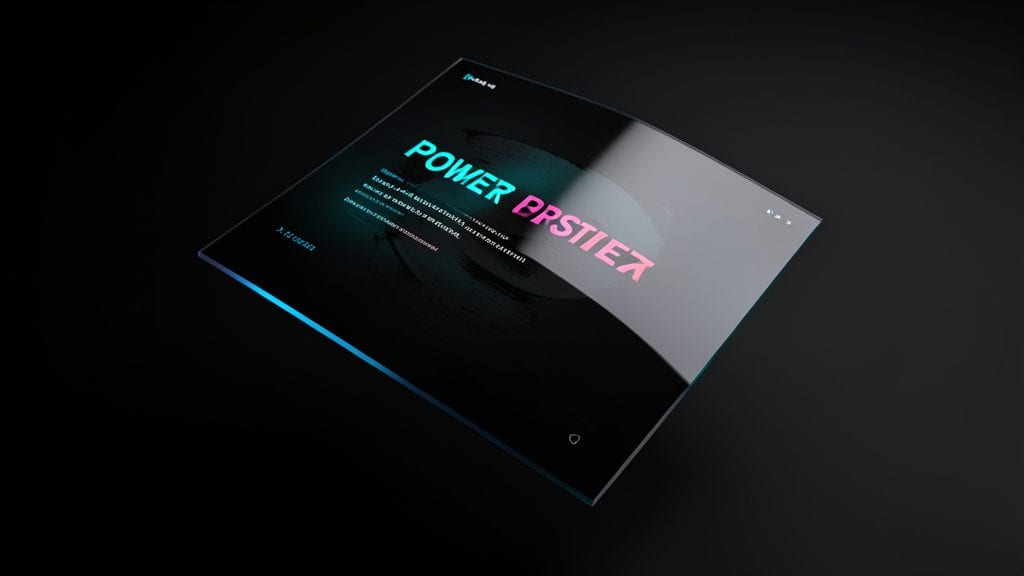
When your presentation needs to feel less like a boardroom meeting and more like a digital art gallery, the 3D Rotate Transition delivers. This effect spins slides along the X, Y, or Z-axis, creating a visually striking entry that’s perfect for designers, artists, or anyone pitching to a creative audience.
Available in PowerPoint’s built-in transitions, it requires no plugins—just select "3D Rotate" in the Transition tab and adjust the axis for a customizable 360° effect. The Exciting speed setting works best for short rotations (under 2 seconds) to avoid dizzying your audience, while the Subtle option adds just enough motion to feel dynamic without overpowering.
Ideal for portfolio reviews, creative pitches, or tech demos where visual impact matters, this transition shines when used sparingly—think key moments, not every slide. Just don’t overdo it, or you’ll turn your audience’s focus into a blur. ✨