
Tip & Trick
Microsoft OneNote 2013 remains a powerhouse for digital organization, yet many users miss its most powerful features. These seven hidden tips and tricks will transform how you capture, organize, and retrieve information—saving you hours weekly.
Quick Capture with OneNote’s Clipper Toolbar
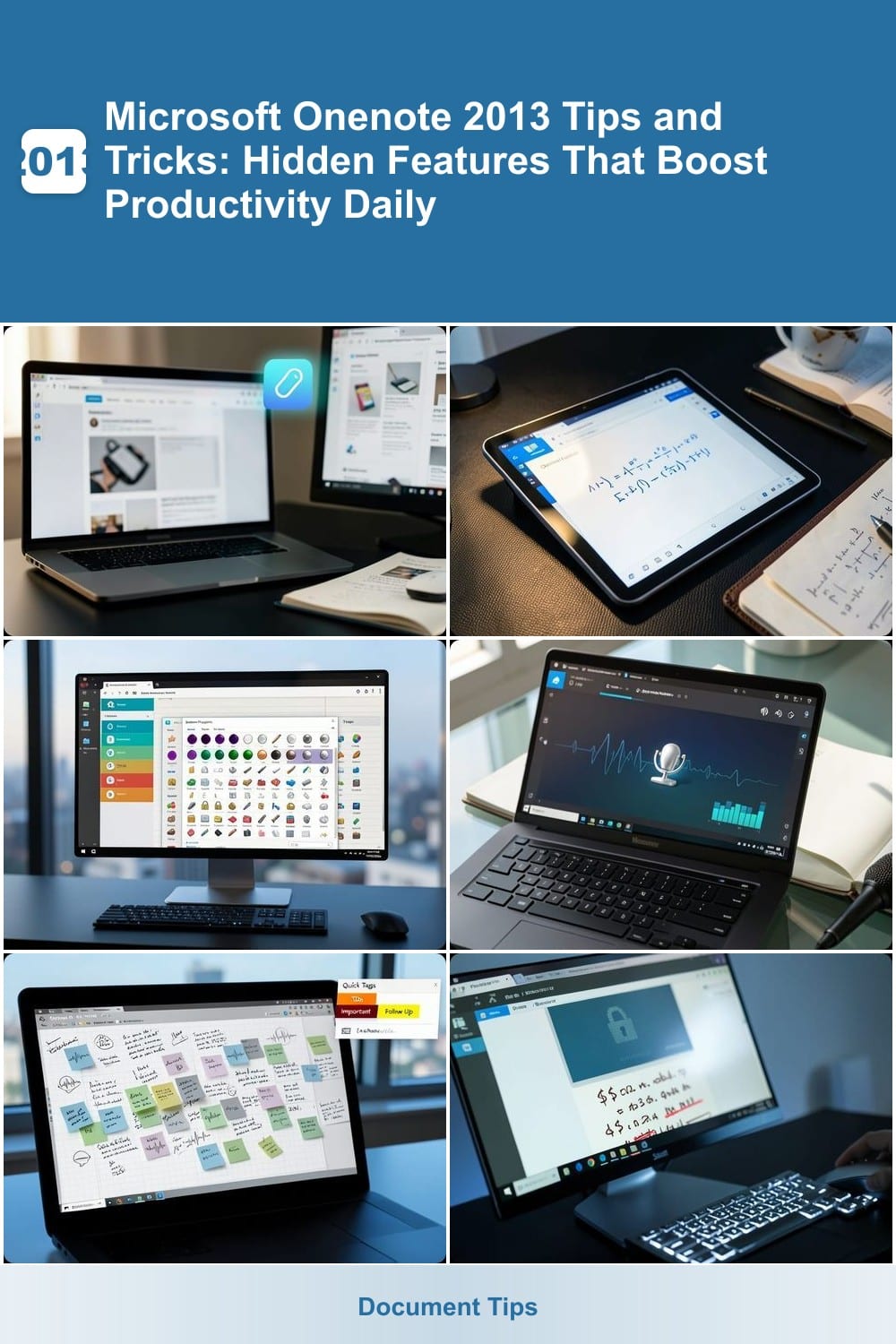
Stuck toggling between apps to save important content? OneNote’s Clipper Toolbar eliminates that frustration by letting you capture web pages, emails, or images directly into your notebooks—without ever opening OneNote. This browser extension (available for Chrome, Firefox, and Edge) adds a floating toolbar that lets you save full articles, screenshots, or even entire PDFs with a single click.
The magic happens in real time: highlight text, clip images, or save entire pages with one-click formatting that preserves links, images, and structure. Need that research paper or meeting email later? It’s instantly searchable in your notebook, complete with timestamped metadata for easy retrieval. The toolbar also syncs with your OneNote account, so captures appear instantly across all your devices.
Perfect for researchers, sales teams, or anyone drowning in digital clutter, this tool turns passive browsing into active organization. No more lost tabs or forgotten bookmarks—just seamless, instant capture. ⚡
Handwritten Math Equations with Ink Recognition
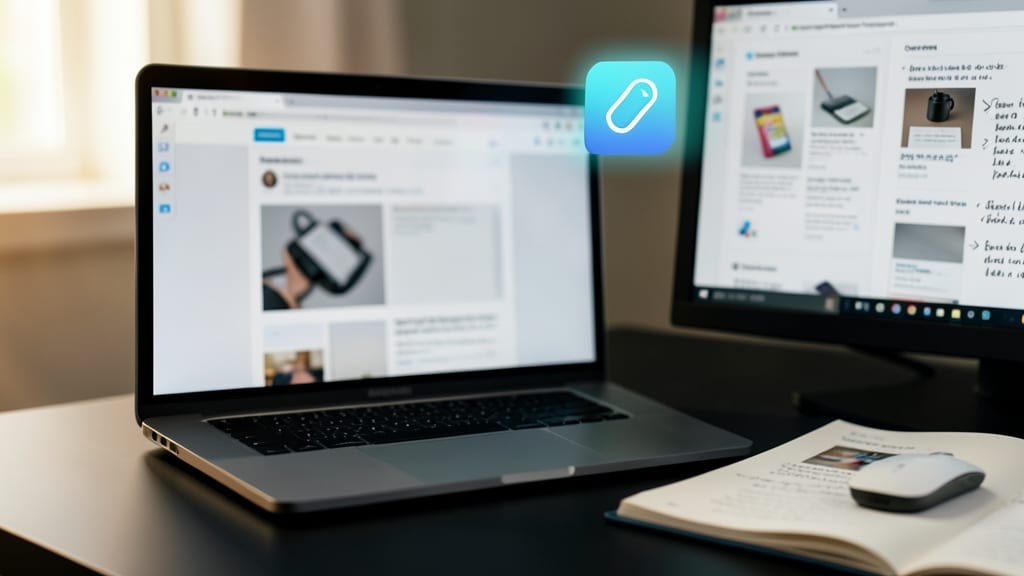
Struggling to type complex equations during a study session or engineering brainstorm? OneNote 2013’s ink recognition feature turns your handwritten math into editable digital formulas—no keyboard required. Simply write equations with a stylus or finger on your tablet or touchscreen, then right-click and select "Convert Ink to Text" to transform scribbles into precise, searchable formulas.
The feature supports standard notation (fractions, exponents, integrals) and even detects common symbols like ∑ (summation) or ∫ (integral). Once converted, you can edit the text directly or solve equations using OneNote’s built-in calculator integration. For students, this means no more struggling with LaTeX syntax—just write naturally and let OneNote handle the formatting. Engineers can sketch circuit diagrams or chemical structures, then annotate them digitally.
Perfect for math students, engineers, or anyone who works with technical diagrams, this feature bridges the gap between analog and digital workflows. No more transcription errors or formatting headaches—just clear, editable equations at your fingertips. ⚡
Section Properties for Customized Organization
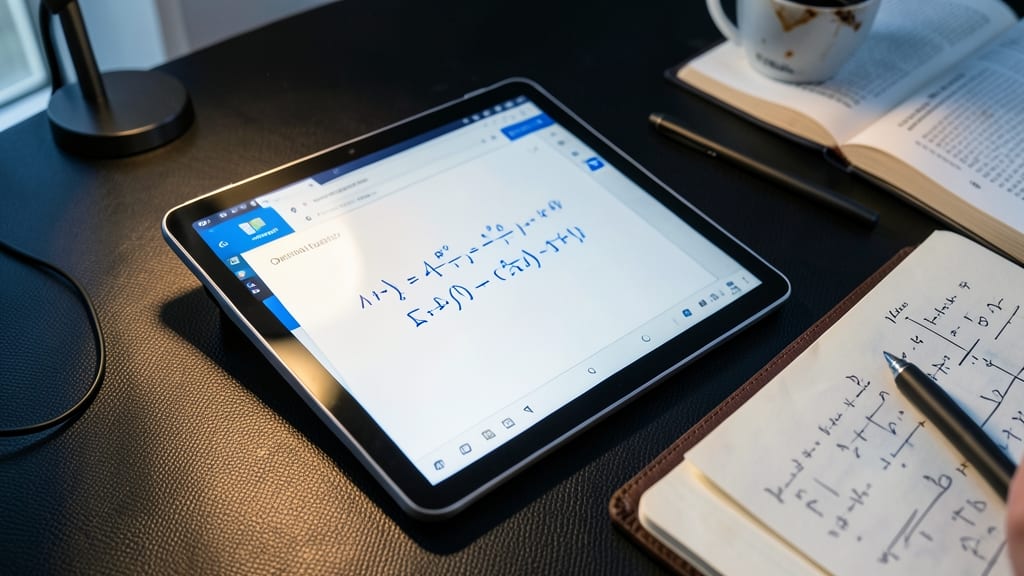
Tired of scrolling through endless pages to find what you need? OneNote 2013’s Section Properties feature lets you assign custom colors, icons, and tags to sections—turning your notebook into a visually organized command center. Right-click any section, select Section Properties, and choose from preset icons or upload your own to instantly categorize content.
Assign a red icon to urgent tasks, a blue folder for work projects, or a yellow tag for personal notes. These visual cues make navigation effortless, especially in shared notebooks where multiple contributors add content. The color-coding system also works seamlessly with the Find Tags feature, so you can search by category later—no more digging through pages!
This trick is a game-changer for project managers, students juggling courses, or anyone drowning in digital clutter. Spend less time searching and more time focusing on what matters. ✨
Audio and Video Recording Directly in Notes
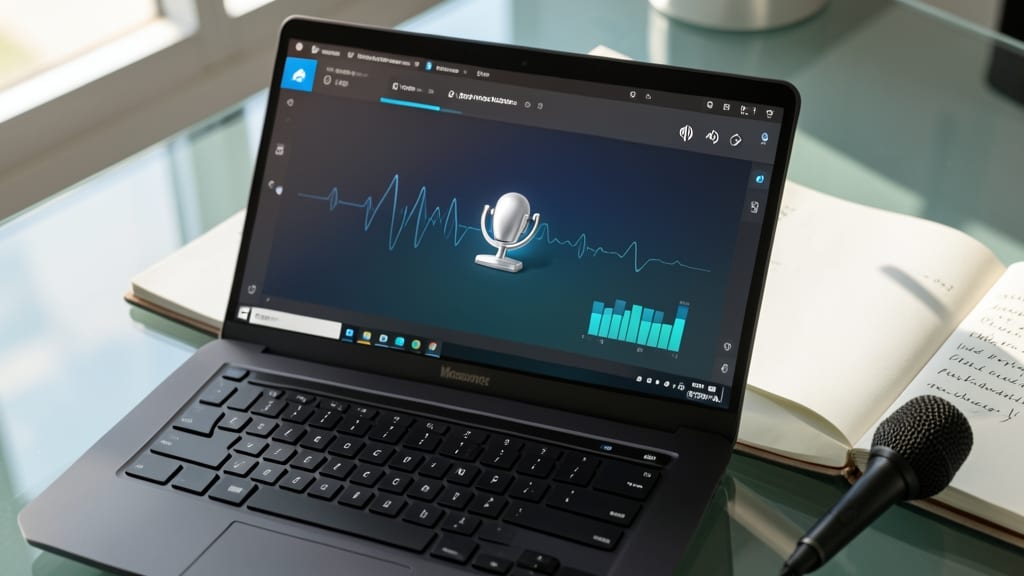
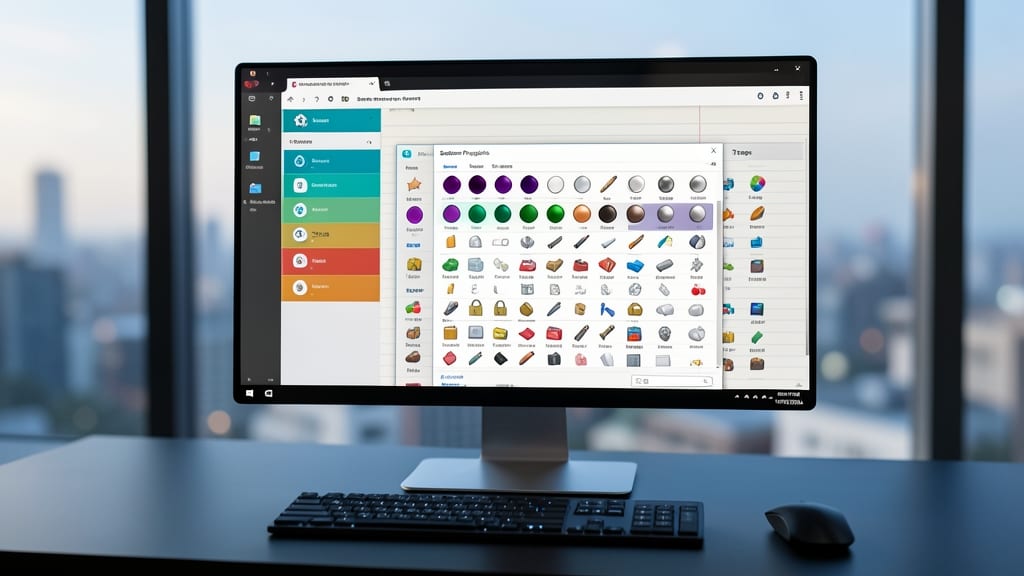
Need to preserve the exact tone of a lecture or a brainstorming session? OneNote 2013’s built-in audio and video recording feature lets you embed recordings directly into your notes—no extra apps required. Simply click the microphone icon in the ribbon, and you’ll start capturing crisp audio or even video (if using a compatible webcam).
The recordings play back as embedded media within your notebook, complete with timestamps for easy navigation. You can even add handwritten annotations over the recording to highlight key moments—perfect for educators reviewing class discussions or remote teams documenting meetings. The MP3 audio format ensures high-quality playback, while video clips maintain clarity for visual reference.
This feature is a game-changer for anyone who relies on verbal discussions but needs to revisit them later. Whether you're a professor capturing lectures or a remote worker documenting client calls, OneNote keeps everything in one place—searchable, organized, and always accessible. ✨
Tagging and Searching with Quick Tags
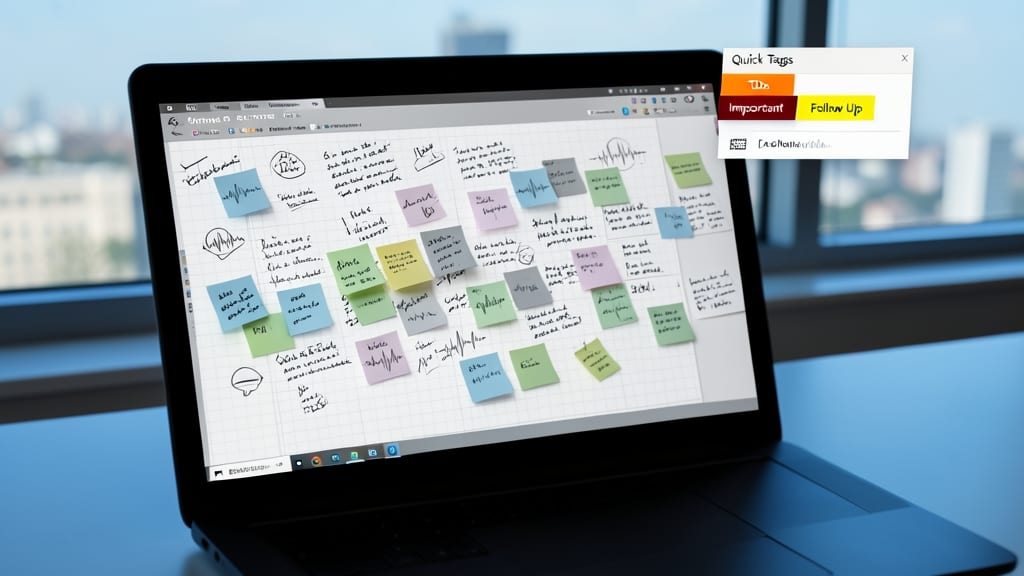
Drowning in a sea of unstructured notes? OneNote 2013’s Quick Tags feature is your lifeline—let’s cut through the clutter. With just a few clicks, you can slap pre-defined tags like To Do, Important, or Follow Up onto any text, image, or audio clip. No more digging through endless pages later.
The magic happens when you use the Find Tags tool (accessible via Home > Find > Tags). Instantly jump to every piece of content marked Important or Meeting Notes—no manual searching required. You can even create custom tags (like Bills or Workshop Ideas) via Tags > Manage Tags, tailoring the system to your workflow. The best part? Tags sync across devices, so your priorities stay visible whether you’re at your desk or on the go.
This trick is a game-changer for project managers, students juggling deadlines, or anyone who’s ever lost track of a critical note. Spend less time organizing and more time getting things done. ✨
Password-Protecting Sensitive Notebooks
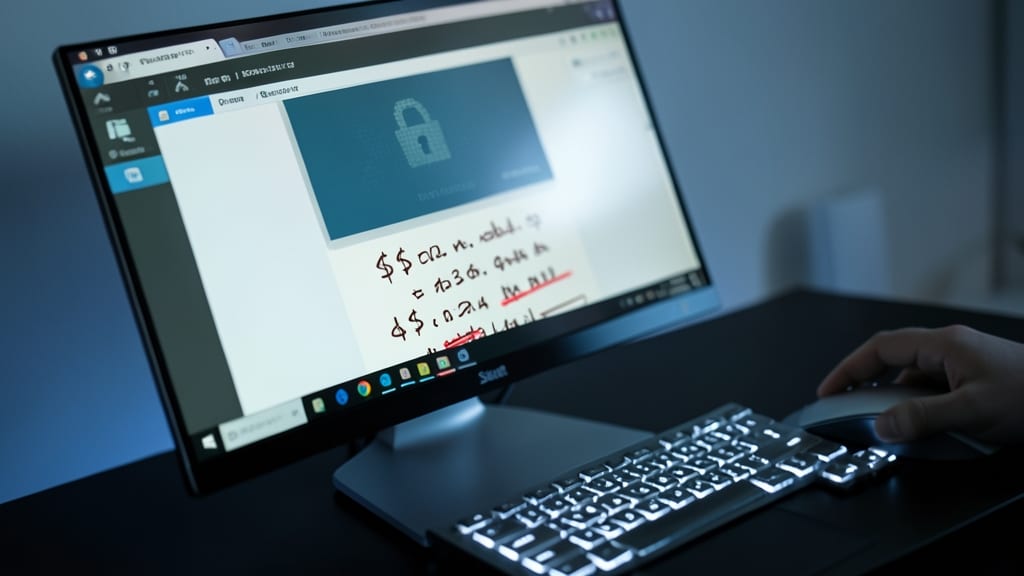
Ever jotted down a client’s sensitive details or personal financial notes in OneNote—only to worry about unauthorized access? Microsoft OneNote 2013’s password protection feature lets you encrypt entire notebooks with a Windows-compatible password, ensuring only authorized users can open them.
To enable this, right-click your notebook in the navigation pane, select Properties, then check the "Password protect" box. You’ll set a password (minimum 8 characters) that must be entered every time the notebook opens—ideal for confidential contracts, medical records, or tax documents. Unlike cloud syncing, this keeps data local and secure without relying on external services.
Perfect for consultants, healthcare workers, or anyone handling private data, this feature adds an extra layer of security without sacrificing OneNote’s flexibility. 🔧
Syncing Across Devices with OneNote Online
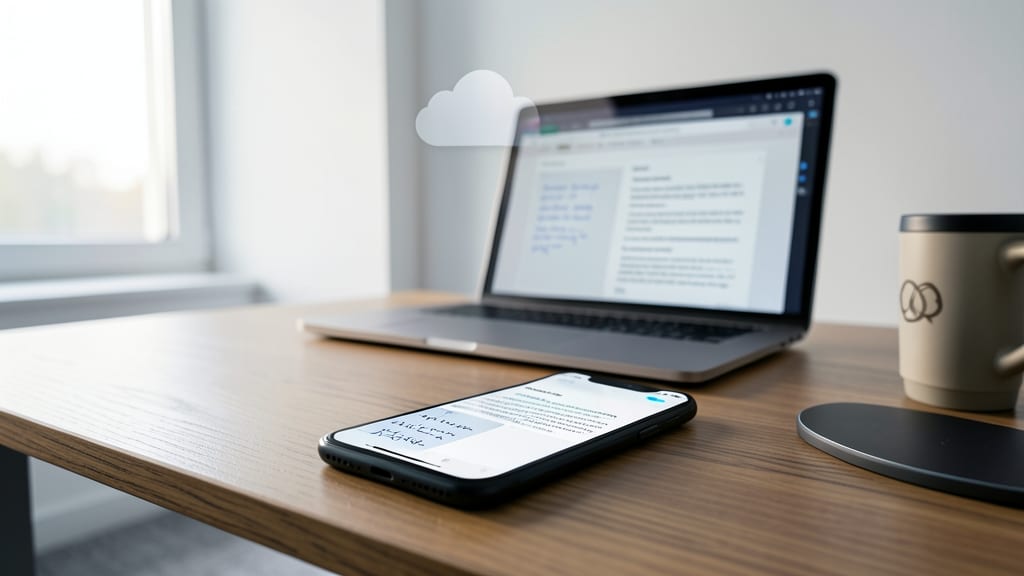
Ever found yourself stuck without your laptop but needing to access critical notes? OneNote Online bridges that gap by syncing your notebooks to the cloud, letting you edit and view them from any device with an internet connection.
With real-time synchronization, changes made on your desktop app instantly reflect in the browser—and vice versa. The web version supports all core features, including handwritten ink, tables, and embedded media, so you never lose functionality. Plus, it’s free with your Microsoft account, making it ideal for remote teams or travelers who need reliable access.
Perfect for consultants on the go or distributed teams collaborating across time zones, OneNote Online ensures your notes are always within reach—no matter where you are. ✨