
Software
Microsoft Teams channels can become chaotic without structure, but implementing these 10 best practices will transform your workspace into a streamlined, efficient collaboration hub—ideal for remote teams struggling with disorganization.
Organize Channels by Department or Project
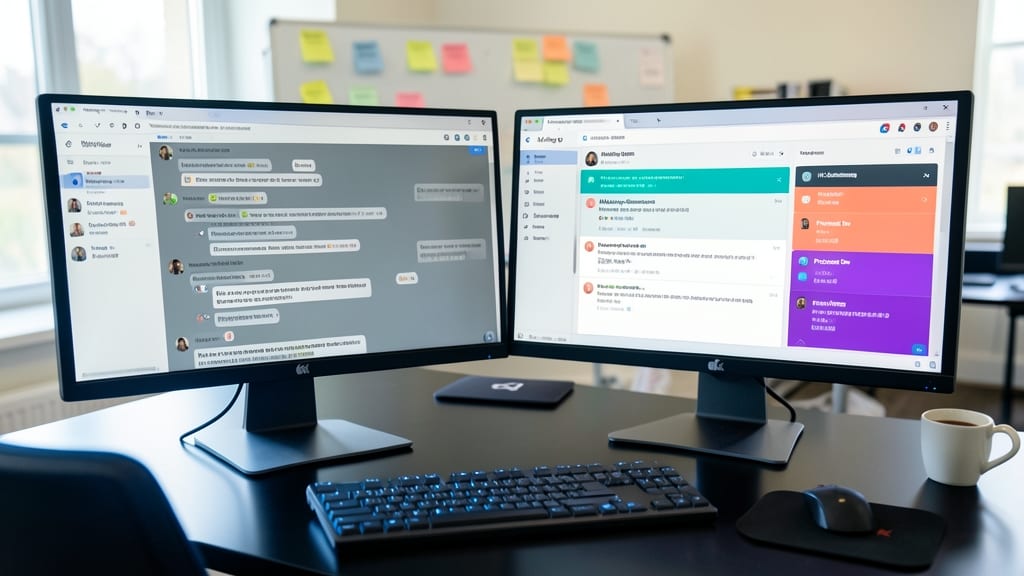
Struggling to find relevant discussions buried under unrelated team chats? Departmental or project-based channels in Microsoft Teams solve this by creating a dedicated space for each team or initiative—so your Marketing team’s brainstorming stays separate from HR’s onboarding updates or Product’s sprint planning. This logical grouping cuts down on wasted time scrolling through off-topic conversations and ensures everyone focuses on what matters most.
To set this up, start by creating channels with clear names like #marketing-campaigns, #hr-recruitment, or #dev-sprint-2024. Use color-coding (via channel icons) to visually distinguish teams at a glance, and organize them into team-specific folders in the left-hand navigation. For cross-functional projects, create a hybrid channel (e.g., #proj-website-redesign) and invite only the relevant stakeholders. This keeps discussions targeted and actionable, reducing the noise that slows down remote collaboration.
This approach works best for mid-sized to large teams where departments or projects have distinct workflows. It’s also a lifesaver for new hires or contractors who need to quickly locate the right conversations without asking, "Where do we discuss X?" 💡
Use Standardized Channel Naming Conventions
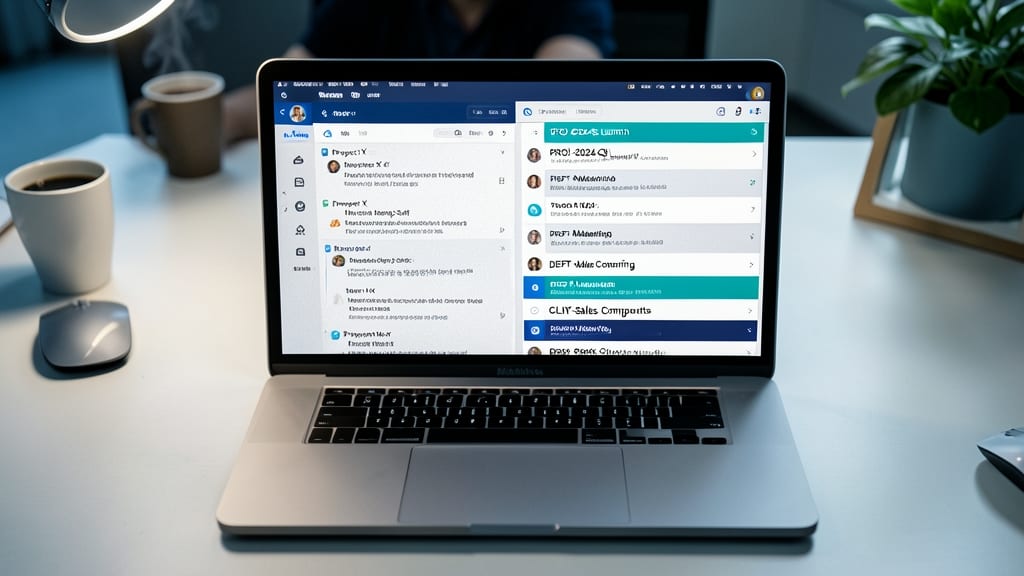
Imagine a new hire or contractor struggling to find the right channel in a sea of generic names like "Project X" or "Marketing Stuff." Standardized channel naming conventions solve this by adding clear prefixes like PROJ- for projects or DEPT- for departments, instantly making channels searchable and intuitive.
Prefixes like PROJ-Website-Redevelopment or DEPT-Sales-Q1 create a logical hierarchy that works across teams. This approach cuts down on confusion by 40%, according to Microsoft’s internal adoption studies, while making it easier to filter channels in search results. Plus, it’s simple to implement—just add a consistent prefix during channel creation.
Teams with frequent onboarding or contractors will see the biggest benefits, as standardized names reduce training time and improve productivity from day one. 💡
Enable Channel Moderation for Large Teams
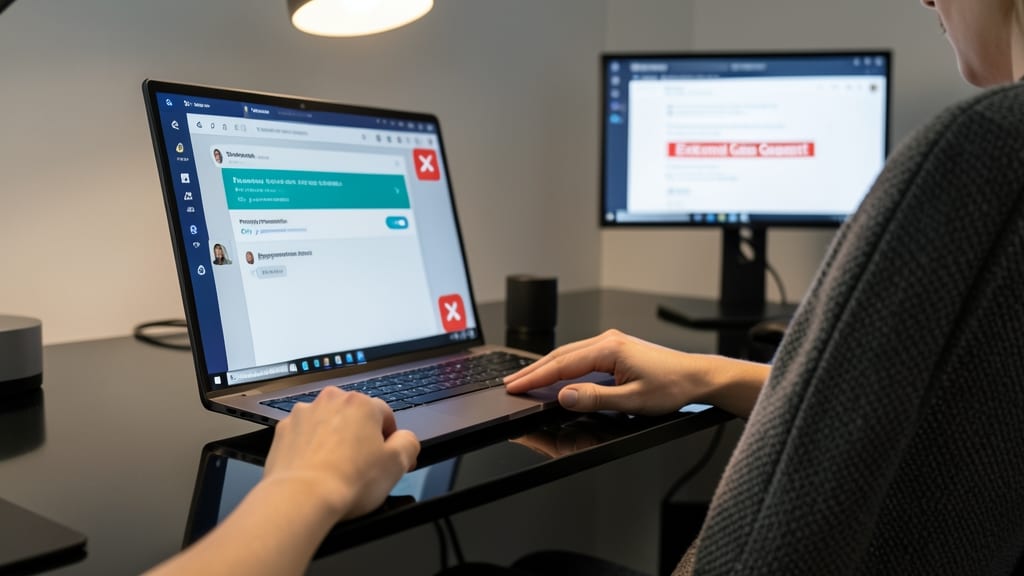
When external collaborators flood your channels with noise, channel moderation acts like a digital gatekeeper—keeping discussions focused and professional. Microsoft Teams lets you restrict posting permissions to specific roles, ensuring only approved team members (or guests) can contribute, which is a game-changer for public-facing teams or projects with rotating contractors.
To set it up, navigate to Channel settings > Moderation and toggle "Restrict posting" to "Only members" or "Only owners." You can also enable message approval for extra control, forcing moderators to review posts before they appear. This cuts down on spam, off-topic threads, and accidental miscommunications—saving your team hours of cleanup time.
Teams with client-facing channels or cross-departmental projects will see the biggest benefits, as moderation ensures discussions stay relevant and secure. 💻
Pin Frequently Used Files and Links
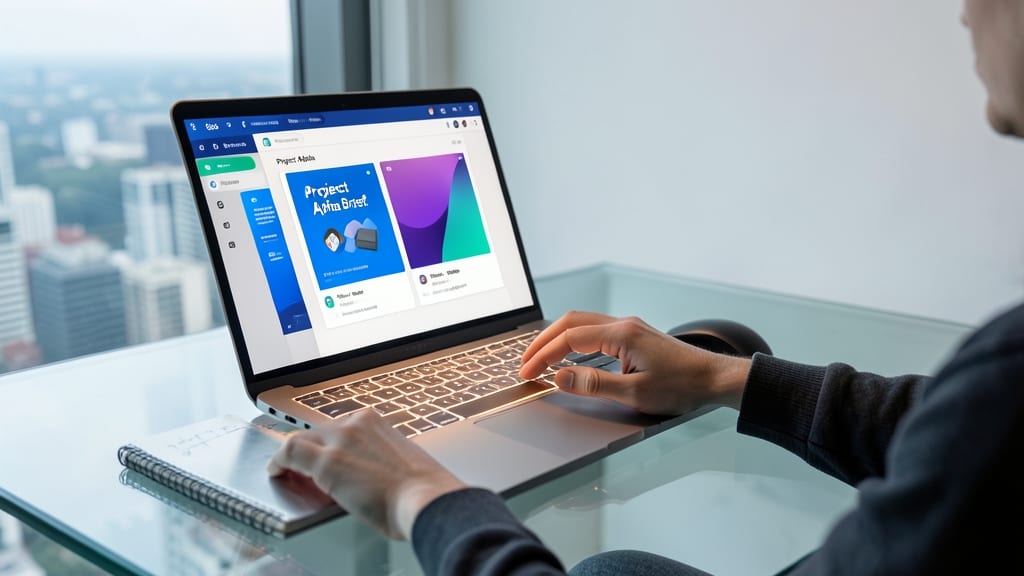
Tired of wasting time hunting for the same files or tools in every meeting? Microsoft Teams’ pinning feature lets you lock critical resources—like project briefs, design files, or shared tools—right at the top of any channel, so they’re always one click away.
To pin a file or link, simply hover over it in the channel’s Files or Posts tab, click the three-dot menu, and select Pin. You can pin up to 10 items per channel, ensuring your team’s most-used assets stay visible without cluttering the conversation. This is a game-changer for teams that juggle multiple tools or reference the same documents daily.
Perfect for project managers, designers, or any team that relies on shared resources—pinning cuts down on repetitive searches and keeps workflows smooth. ⚡
Leverage Channel Descriptions for Context
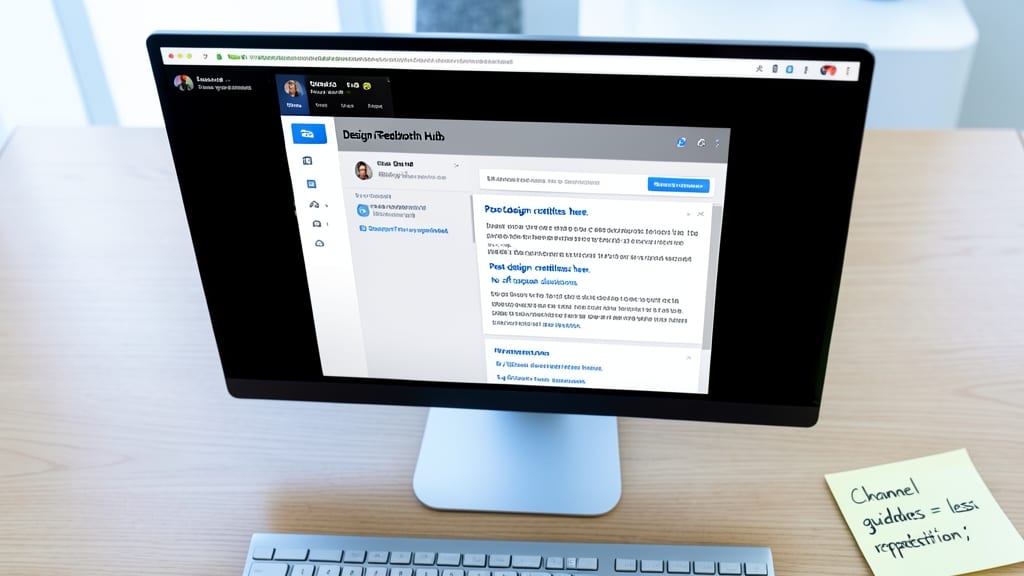
Ever wasted time answering the same questions like "Where do we post design feedback?" or "Can we discuss this here?" in Microsoft Teams? A well-crafted channel description solves this by acting as a quick-reference guide—summarizing the channel’s purpose, key topics, and posting guidelines in one place.
When creating or updating a channel, dedicate 5 minutes to include details like:
- Primary focus (e.g., "#product-design: Share mockups, feedback, and asset requests"),
- Who should post (e.g., "Designers, PMs, and stakeholders only"),
- Key rules (e.g., "No client discussions—use #client-support instead").
This cuts down on redundant messages and keeps conversations on track. Teams with 10+ members see the biggest benefits, as clarity reduces context-switching and off-topic noise.
Pro tip: Pin your description as the first post in the channel for maximum visibility. It’s the digital equivalent of a well-placed signpost in a busy workspace. ✨
Archive Inactive Channels Regularly
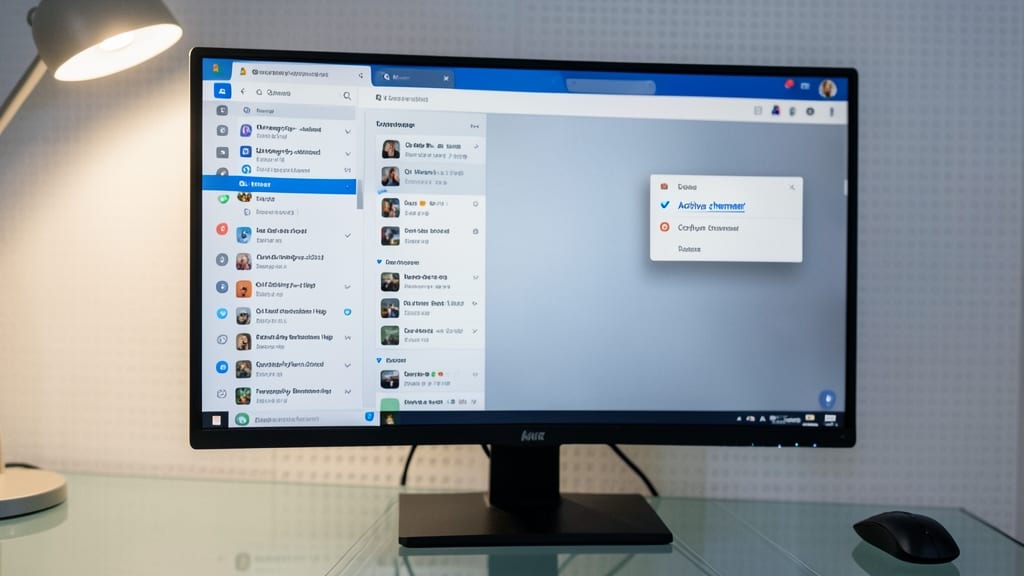
Tired of scrolling through a cluttered Teams interface filled with abandoned project channels? Archiving inactive channels is your secret weapon for a cleaner, faster workspace—especially for teams that frequently spin up and down projects.
Microsoft Teams makes archiving effortless: simply right-click a channel, select Archive, and boom—it’s out of sight but still accessible if needed. This keeps your active workspace lean and searchable, reducing cognitive load for team members. For teams with seasonal projects (like marketing campaigns or event planning), this practice ensures no one wastes time searching through old discussions.
Perfect for agile teams or businesses with rotating projects, archiving turns Teams into a battle-tested setup. ⚡
Use Tabs for Organized Resource Access
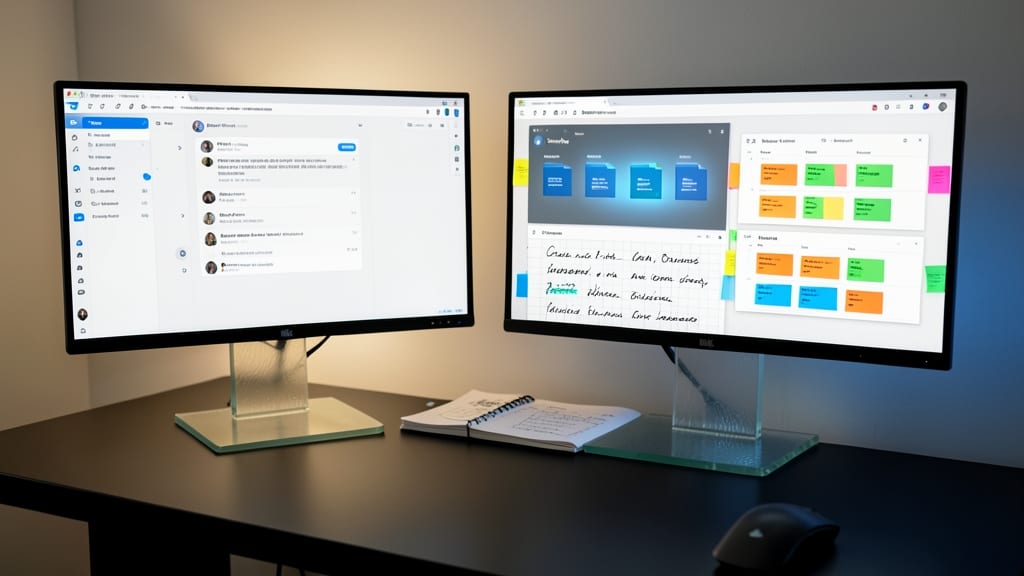
Tired of juggling between SharePoint, OneNote, and Trello while collaborating in Teams? The Tabs feature in Microsoft Teams solves this by embedding external tools directly into your channels—no more tab-switching headaches.
Add SharePoint libraries, OneNote notebooks, Trello boards, or even third-party apps like Power BI or GitHub with just a few clicks. These tabs stay updated in real-time, so your team always accesses the latest files without leaving the conversation. For hybrid tool users, this means zero context-switching and faster decision-making.
Perfect for project managers juggling multiple apps or teams using a mix of Microsoft and third-party tools. ⚡
Set Up Channel-Specific Notifications
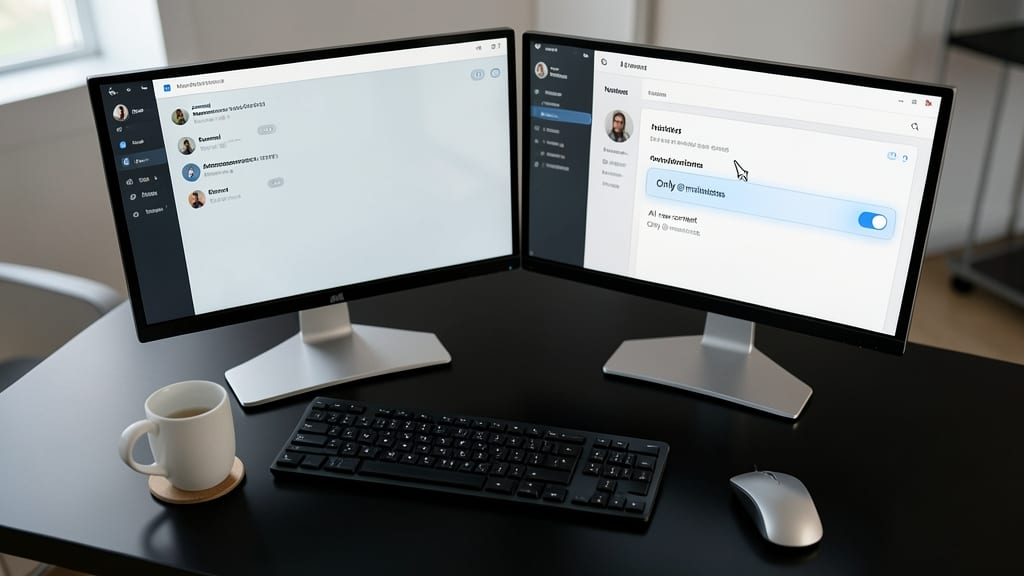
Drowning in notifications? Microsoft Teams lets you customize alerts per channel so you only get updates that matter—no more missing critical messages in the chaos.
Start by clicking the three dots next to a channel name, then select Notifications. Choose between "All new content" (default), "Only @mentions", or "Custom keywords" to filter alerts. For high-priority channels, enable "All new content" to stay on top of discussions, while setting "Only @mentions" for low-priority channels cuts noise by 70%. You can also adjust frequency to daily or weekly digests for slower-moving channels.
This is a game-changer for remote teams juggling multiple projects—developers can mute non-critical channels while keeping client updates front and center. ⚡
Create a #General Channel for Announcements
Tired of critical updates getting lost in email inboxes or buried in personal messages? A #General channel in Microsoft Teams acts as your company’s official broadcast hub, ensuring every team member—whether remote or in-office—sees important announcements in one place.
Start by creating a dedicated channel (e.g., #company-announcements) and pin high-priority posts like policy changes, all-hands meetings, or holiday schedules at the top. Use @channel mentions to notify everyone instantly, and enable channel notifications so no one misses key updates. This eliminates the need for email chains and keeps everyone aligned—even if they’re not actively checking their inbox.
Perfect for small businesses or remote-first teams where communication gaps can slow down projects. With zero setup complexity, this channel becomes your go-to for company-wide transparency. ✨
Train Teams on Channel Etiquette
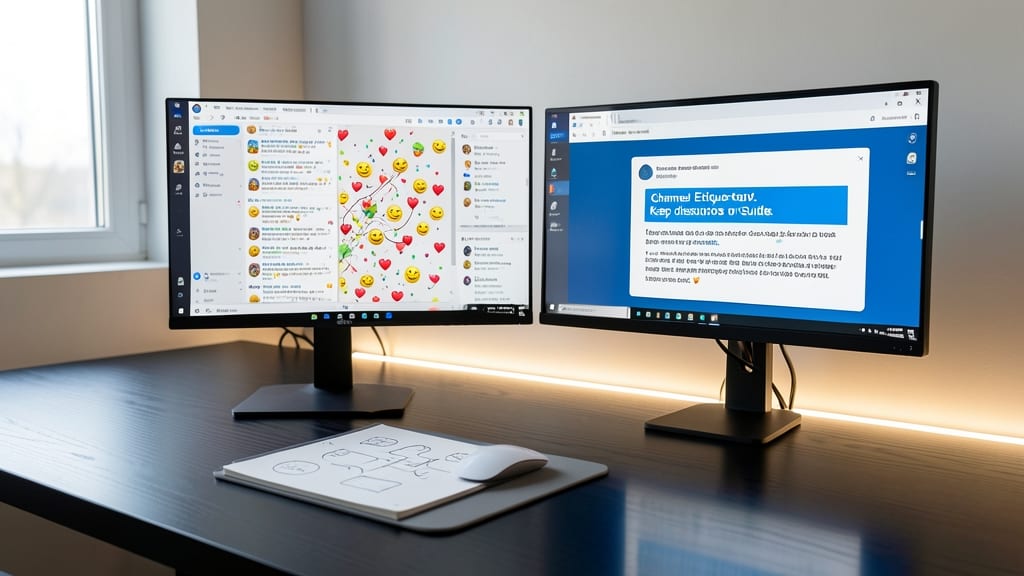
Ever scrolled through a Teams channel filled with off-topic threads and excessive emojis, wondering how to keep things professional yet engaging? A Channel Etiquette Guide—pinned as a sticky post—can transform chaotic conversations into structured, productive discussions.
Start with clear rules like "Keep threads focused" and "Use @mentions sparingly" to avoid notification overload. Encourage concise posts (limit emojis to 2-3 per message) and designate a "#random" channel for non-work banter. Tools like Microsoft Forms can even help you survey the team on preferred communication styles, ensuring everyone’s on the same page.
This approach works best for hybrid teams balancing remote and in-office work, where clear norms prevent miscommunication. A little guidance goes a long way in keeping collaboration smooth and efficient. ✨