
Software
Managing SharePoint document library permissions can be a nightmare if you don’t follow best practices. These 10 permission strategies will help you balance security, collaboration, and ease of administration—without turning your SharePoint into a permission jungle.
Use SharePoint Groups Over Individual Permissions

Managing SharePoint permissions feels like herding cats when you assign access to individual users—until you discover the power of SharePoint Groups. Instead of tracking 50+ users, you manage just a handful of groups (like "Marketing Team" or "Finance Department"), cutting admin time by 70% and eliminating permission drift.
Create a group for each team or role (e.g., "Project Contributors" or "Approvers"), then assign permissions once to the group instead of repeating them for every member. When someone joins or leaves, you simply add/remove them from the group—no need to hunt down every permission assignment. SharePoint even lets you nest groups (e.g., "All Employees" containing "Marketing Team" and "Finance Team") for hierarchical control.
This method is perfect for IT admins, HR departments, or project managers juggling multiple teams. It’s the difference between a permission mess and a battle-tested setup. ⚡
Apply Least Privilege Principle for Sensitive Files

Struggling to balance security and collaboration in SharePoint? The least privilege principle is your secret weapon—grant only the minimum permissions needed, nothing more. This approach locks down sensitive files (like HR records or financial reports) while keeping workflows smooth for authorized teams.
Start by assigning View-only access by default, then elevate only when necessary—e.g., grant Edit to project managers but restrict Delete entirely. Use SharePoint’s permission levels (Custom, Contribute, Read) to fine-tune roles without over-permissive defaults. For extra control, combine this with folder-level restrictions (from the next item) to segment access by document type.
This method is ideal for compliance-heavy teams (legal, finance) or shared drives where multiple departments collaborate. It’s the difference between a secure vault and a wide-open filing cabinet. 💪
Leverage Folder-Level Permissions for Departmental Projects

Tired of giving entire teams access to documents they shouldn’t see? Folder-level permissions in SharePoint let you lock down specific areas while keeping collaboration fluid—perfect for cross-departmental projects where only certain files need to be shared.
Break inheritance on a folder to assign custom permissions (e.g., "Marketing Team: Edit," "Finance Team: View Only"). This keeps unrelated documents secure while giving teams the exact access they need. Use unique permissions for sensitive subfolders, like client proposals or internal reports, without affecting the rest of the library.
This approach works best for project-based teams or departments sharing resources (like HR policies with legal review access). It’s the middle ground between over-permissive libraries and over-engineered security. ✨
Enable Versioning and Check-Out Requirements

Tired of losing critical documents to accidental overwrites? SharePoint’s versioning and check-out requirements act like a digital safety net, preserving every revision while controlling who can edit files.
Enable versioning to retain up to 50,000 major/minor versions (adjustable) of each document, while check-out requirements force users to "reserve" files before editing—preventing conflicts. SharePoint tracks every change, including who modified what and when, creating an immutable audit trail. For libraries storing contracts or financial reports, this ensures compliance and peace of mind.
This setting is perfect for legal teams, finance departments, or project managers where document integrity is non-negotiable. ⚡
Automate Permission Inheritance with Metadata
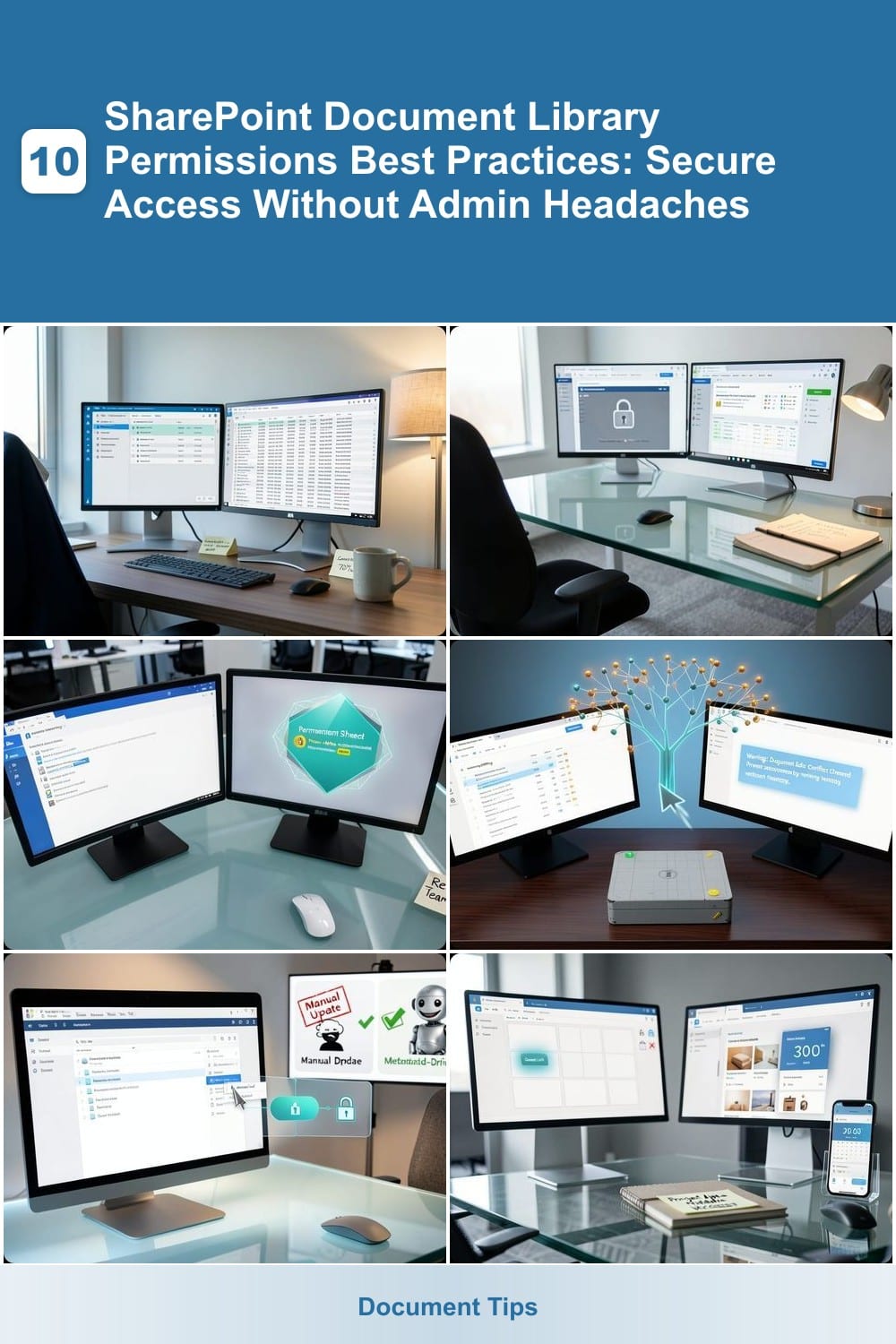
Tired of manually updating permissions every time a document’s status changes? Metadata-driven permissions let SharePoint adjust access automatically based on columns like Project Phase or Department—no admin work required.
Start by adding a custom column (e.g., Access Level or Phase) to your library. Then use SharePoint’s column security settings to define rules like "Only 'Marketing' can edit documents with Phase = 'Active'." This ensures permissions stay synced with metadata, eliminating outdated manual overrides. For example, a 'Draft' document could auto-restrict edits to authors, while 'Approved' files open to broader teams.
This approach is perfect for project-based teams or compliance-heavy environments where document lifecycle stages dictate access. Say goodbye to permission drift! ✨
Restrict External User Access via Guest Links

Tired of granting full external access that lingers long after a project ends? Guest Links in SharePoint let you share documents securely with vendors or clients—without permanently expanding your permission lists.
Create a time-limited link (e.g., 7 or 30 days) that revokes access automatically after expiration. You can even restrict editing to view-only or limit sharing to specific files. The best part? External users don’t need SharePoint accounts—just the link. This keeps your internal permissions clean while maintaining collaboration.
Perfect for contractors, freelancers, or one-off client projects where temporary access is needed. No more chasing down admins to revoke permissions after a job’s done. ✨
Audit Permissions Regularly with Access Reports
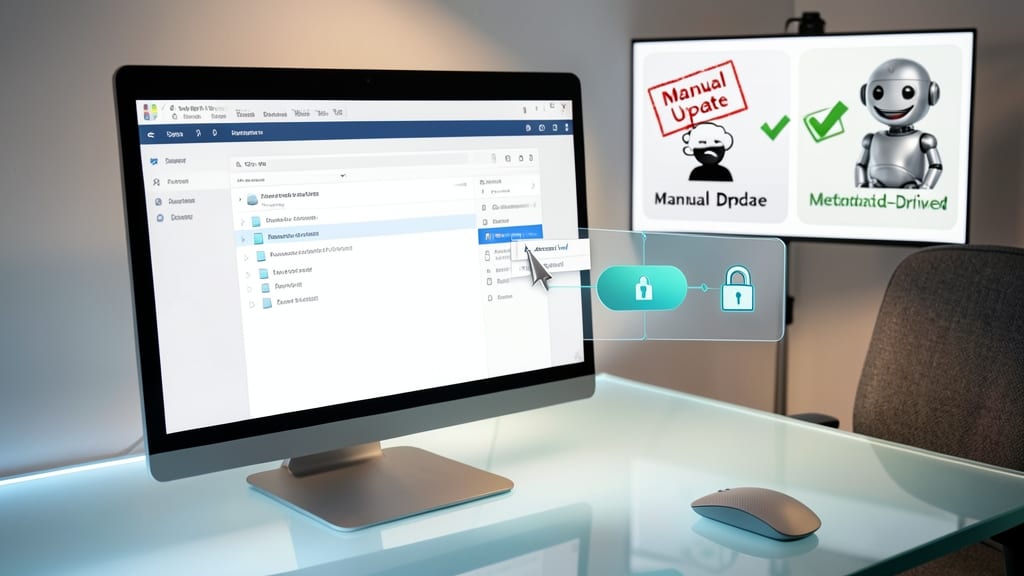
Forget reacting to security breaches—proactive permission audits are your secret weapon in SharePoint. Built-in Access Reports let you spot orphaned permissions (leftovers from departed employees) and inactive users before they become liabilities. Microsoft’s Access Review feature even automates the process with customizable review cycles.
Set up a monthly schedule to scan libraries for suspicious access patterns, like users with Full Control where Edit would suffice. The reports highlight permission conflicts and unusual activity, giving you actionable insights without manual digging. Best of all, it integrates with Microsoft 365 compliance tools for seamless auditing.
This is the non-negotiable step for IT admins, compliance officers, or anyone managing sensitive data. 15 minutes monthly can prevent a data disaster. ✨
Break Permission Inheritance for High-Risk Libraries
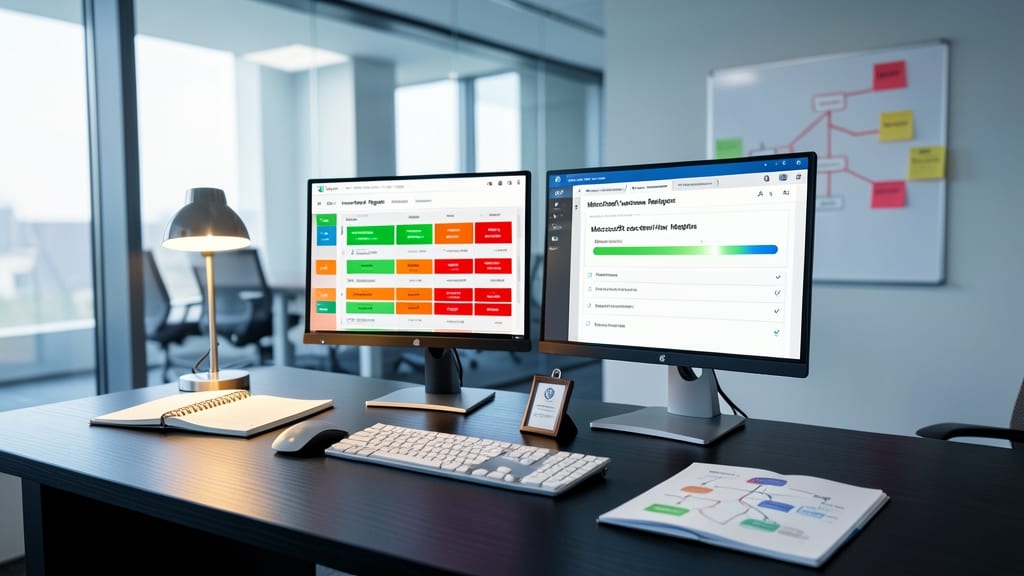
When your SharePoint library holds financial records, HR files, or legal contracts, default site-level permissions become a liability—not a safeguard. Breaking permission inheritance lets you override those settings and enforce stricter rules tailored to your most sensitive assets.
Start by navigating to Library Settings > Permissions for this document library and selecting Stop Inheriting Permissions. This unlocks granular controls: grant Edit to finance teams but Read-only to auditors, or restrict access entirely to a closed group. For extra security, combine this with versioning (from a previous item) to ensure even accidental edits can’t compromise sensitive data.
This approach is ideal for compliance-heavy industries like healthcare or law, where regulatory requirements demand strict access controls. It’s also perfect for internal audit libraries where only specific roles should ever see the contents. 💪
Train Teams on Permission Best Practices

Human error is the #1 cause of permission-related breaches in SharePoint—yet most teams never train users on how to handle access requests correctly. A 30-minute interactive training session covering role-based access (like distinguishing between Edit and Contribute permissions) can slash accidental oversharing by 40%.
Start by teaching teams to avoid "Everyone" permissions—a common pitfall that exposes sensitive files. Use SharePoint’s built-in Access Requests feature to log suspicious requests, then review them weekly. Include real-world scenarios, like how a marketing team might accidentally grant edit access to a vendor instead of view-only. Provide a cheat sheet with permission icons and their meanings.
This approach works best for non-IT teams who need to collaborate securely but lack admin training. Even a quarterly refresher keeps permissions tight without overwhelming your IT department. ✨
Use Power Automate for Dynamic Permission Workflows
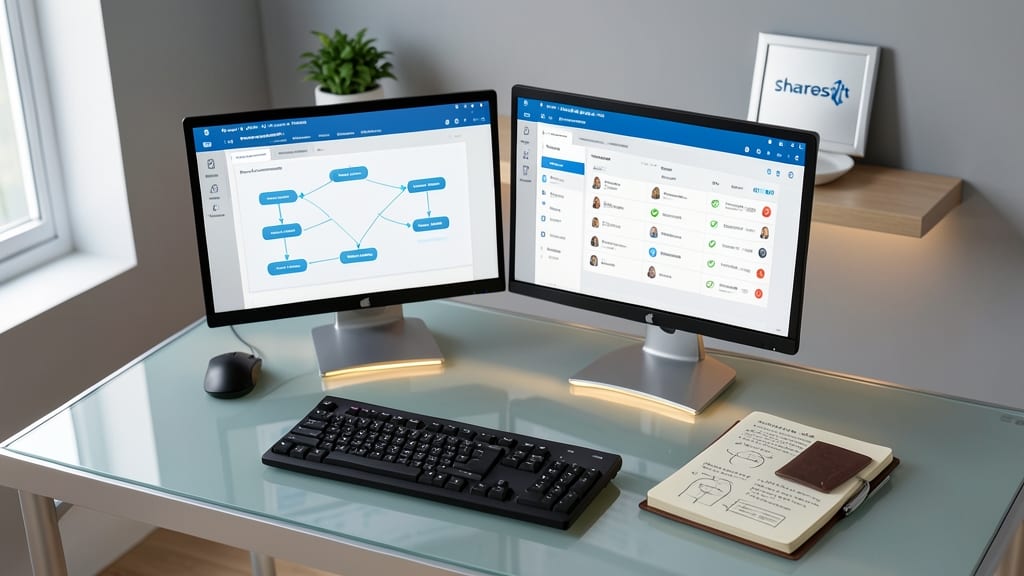
Tired of manually updating permissions every time a project wraps up or a team member leaves? Power Automate transforms repetitive permission tasks into automated workflows, saving hours of admin work while keeping your SharePoint library compliant.
With Power Automate, you can set up flows that trigger permission changes based on events like document status updates (e.g., "Project Complete") or user role changes. For example, automatically revoke edit access for a folder when a project moves to "Archived" status, or grant temporary access to vendors upon contract approval. The SharePoint "Set permissions" action integrates seamlessly, letting you assign roles like Contribute or Read dynamically—no coding required.
This approach is perfect for IT admins, project managers, or compliance officers who juggle multiple libraries and need to enforce policies without manual oversight. Say goodbye to permission drift and hello to zero-config compliance. ✨