
Coding
Struggling to clean, transform, or extract text data in Excel? These 10 powerful text functions will help you solve real-world data problems—from formatting inconsistencies to complex text manipulations—with practical examples you can use immediately.
Concatenate Function for Merging Text Fields

Struggling to combine first names and last names into a single column without errors? The CONCATENATE function is your go-to tool for merging text fields seamlessly—whether you're standardizing customer names, building email addresses, or creating full product descriptions.
Simply use =CONCATENATE(A2, " ", B2) to combine cells A2 and B2 with a space in between (e.g., merging "John" and "Doe" into "John Doe"). For Excel 2013 and later, the newer TEXTJOIN function offers even more flexibility by handling delimiters and ignoring empty cells. But if you're stuck with Excel 2003, use =A2 & " " & B2—the ampersand (&) operator works as a perfect workaround.
This function is a must-have for HR teams managing employee directories, marketers creating personalized campaigns, or anyone dealing with split data that needs combining. ⚡
Text to Columns for Splitting Delimited Data
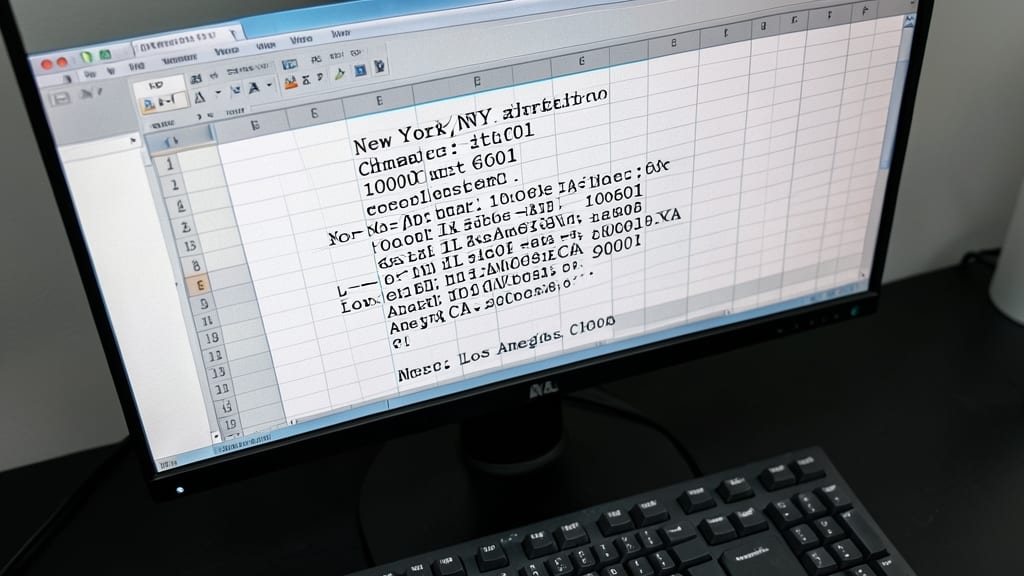
Staring at a single cell packed with comma-separated values—like a CSV import with city, state, and ZIP all crammed together—can feel like solving a puzzle. The Text to Columns tool instantly splits this chaos into clean, organized columns with just a few clicks, saving hours of manual copying.
Start by selecting your data, then navigate to Data > Text to Columns (or press Alt+D+E). Choose your delimiter—comma, tab, or space—and let Excel handle the rest. For example, a cell with "New York,NY,10001" becomes three separate columns in one step. You can even preview the split before finalizing, and advanced options let you handle text qualifiers (like quotes around fields) or fixed-width data.
This is the secret weapon for data analysts importing CSV files, small business owners parsing address lists, or anyone wrestling with messy exported data. No formulas required—just pure, automated organization. 💻
LEFT, RIGHT, and MID Functions for Extracting Specific Characters

Need to pull just the first five characters from a product code or extract a first name from a full name? The LEFT, RIGHT, and MID functions give you pixel-perfect control over text extraction in Excel.
Use LEFT(A2,5) to grab the first five characters from cell A2, RIGHT(A2,3) for the last three, or MID(A2,7,4) to extract four characters starting at position 7. These functions are perfect for cleaning messy data where you only need specific portions—like pulling order numbers from long invoice strings or isolating domain names from email addresses.
Accountants standardizing vendor codes and marketers analyzing product SKUs will find these functions indispensable for precise data extraction. ✨
TRIM Function for Removing Extra Spaces
Ever wasted hours manually deleting extra spaces in copied data? The TRIM function is your lifesaver for cleaning up messy text—whether it's from web scrapes, PDF exports, or old databases. A single formula removes leading, trailing, and multiple consecutive spaces, instantly fixing sorting and filtering headaches.
Simply use =TRIM(A1) to clean cell A1, and it handles all space types automatically. For bulk fixes, drag the formula down your column or use Find & Replace with TRIM in custom formulas. Works in Excel 2007 and later, making it universally accessible for data cleanup tasks.
Perfect for analysts, marketers, or anyone dealing with imported datasets—save time and frustration with this one-click solution. ✨
UPPER, LOWER, and PROPER Functions for Text Formatting

Tired of inconsistent text ruining your reports or emails? The UPPER, LOWER, and PROPER functions instantly standardize messy text—whether it’s converting names to title case or ensuring uniform formatting across databases.
Use UPPER to force all text to uppercase (e.g., "JOHN DOE"), LOWER for lowercase (e.g., "john doe"), or PROPER to capitalize the first letter of each word (e.g., "John Doe"). These functions work in Excel 2007 and later, making them perfect for cleaning up imported data, formatting headers, or preparing text for consistency in reports.
Marketers standardizing product names and account managers ensuring professional email signatures will love how these functions eliminate manual editing. ✨
SEARCH and FIND Functions for Locating Text Patterns

Need to hunt down specific text in messy datasets? The SEARCH and FIND functions act like Excel’s built-in detective tools, pinpointing exact matches or flexible patterns in seconds.
FIND requires exact character matches (including case) and returns the position number, while SEARCH ignores case and wildcards (*?) for broader pattern matching. For example, =SEARCH("@","A1") locates email addresses in a column, while =FIND("Error",B2) spots exact error messages. Both return #VALUE! if nothing matches—perfect for error checking with IFERROR.
Accountants validating invoices or marketers scanning for brand mentions will love these for quick validation. ⚡
SUBSTITUTE Function for Replacing Text Automatically

Tired of manually fixing typos or inconsistent abbreviations across hundreds of cells? The SUBSTITUTE function lets you replace text automatically—whether you're correcting "Inc." to "Incorporated", removing special characters like @#$, or standardizing "USA" vs. "U.S.A." in a flash.
With just four arguments—your cell reference, the old text, the new text, and an optional instance number—you can transform entire columns. For example, =SUBSTITUTE(A2, "Inc.", "Incorporated") instantly updates all instances in column A. It even handles wildcards (like * or ?) for pattern-based replacements, making it perfect for cleaning messy data imports.
This is the go-to tool for data analysts, HR teams (fixing inconsistent job titles), and anyone dealing with exported datasets where formatting varies. ⚡
REPLACE Function for Swapping Characters by Position

Tired of manually editing text strings where only specific characters need changing? The REPLACE function lets you swap or remove characters at precise positions—no need to rewrite entire cells.
Use it to transform '0' to 'O' in IDs (e.g., REPLACE(A1, 1, 1, "O")), strip unwanted characters from phone numbers (e.g., remove hyphens), or replace placeholders in templates. The syntax is simple: REPLACE(oldtext, startnum, numchars, newtext). For example, REPLACE("123-456-7890", 4, 1, "") removes the hyphen at position 4.
Perfect for data analysts cleaning inconsistent IDs, customer support teams standardizing phone formats, or developers prepping text for APIs. ⚡
CLEAN Function for Removing Non-Printable Characters

When your Excel data looks "clean" but still causes errors—like formulas failing or reports rejecting imports—hidden non-printable characters are often the culprit. These invisible characters (like line breaks, tabs, or formatting codes) sneak in from scanned documents, PDF exports, or copied web content, turning your data into a puzzle.
The CLEAN function is your secret weapon: it strips out all non-printable ASCII characters (codes 0-31 and 127), leaving only text you can see and use. For example, if you import a scanned invoice where line breaks appear as extra spaces, =CLEAN(A1) instantly removes them. It’s especially useful for OCR-scanned data or text copied from legacy systems where formatting gets corrupted.
Perfect for accountants reconciling scanned receipts, marketers cleaning up email lists, or anyone exporting data to other systems. Just remember—it only targets ASCII codes, so Unicode characters (like emojis) stay intact. ✨
TEXTJOIN Function for Advanced Text Combination

Tired of messy concatenation errors when combining text with delimiters? The TEXTJOIN function is your modern solution—it merges cells while respecting your chosen separator (like semicolons for CSV exports) and automatically skips empty cells, avoiding the #VALUE! headaches of older methods.
With three key parameters—range, delimiter, and ignore_empty—you gain full control. For example, =TEXTJOIN(", ", TRUE, A2:C2) combines columns A, B, and C with comma-space separators, ignoring any blank cells in the process. It’s perfect for generating comma-separated lists, cleaning up data exports, or building dynamic strings without manual checks.
This is the go-to tool for data analysts, report builders, and anyone exporting structured text. Excel 2019 and 365 users get the most flexibility, but even older versions benefit from its cleaner output compared to CONCAT or TEXT. ✨