
Tip & Trick
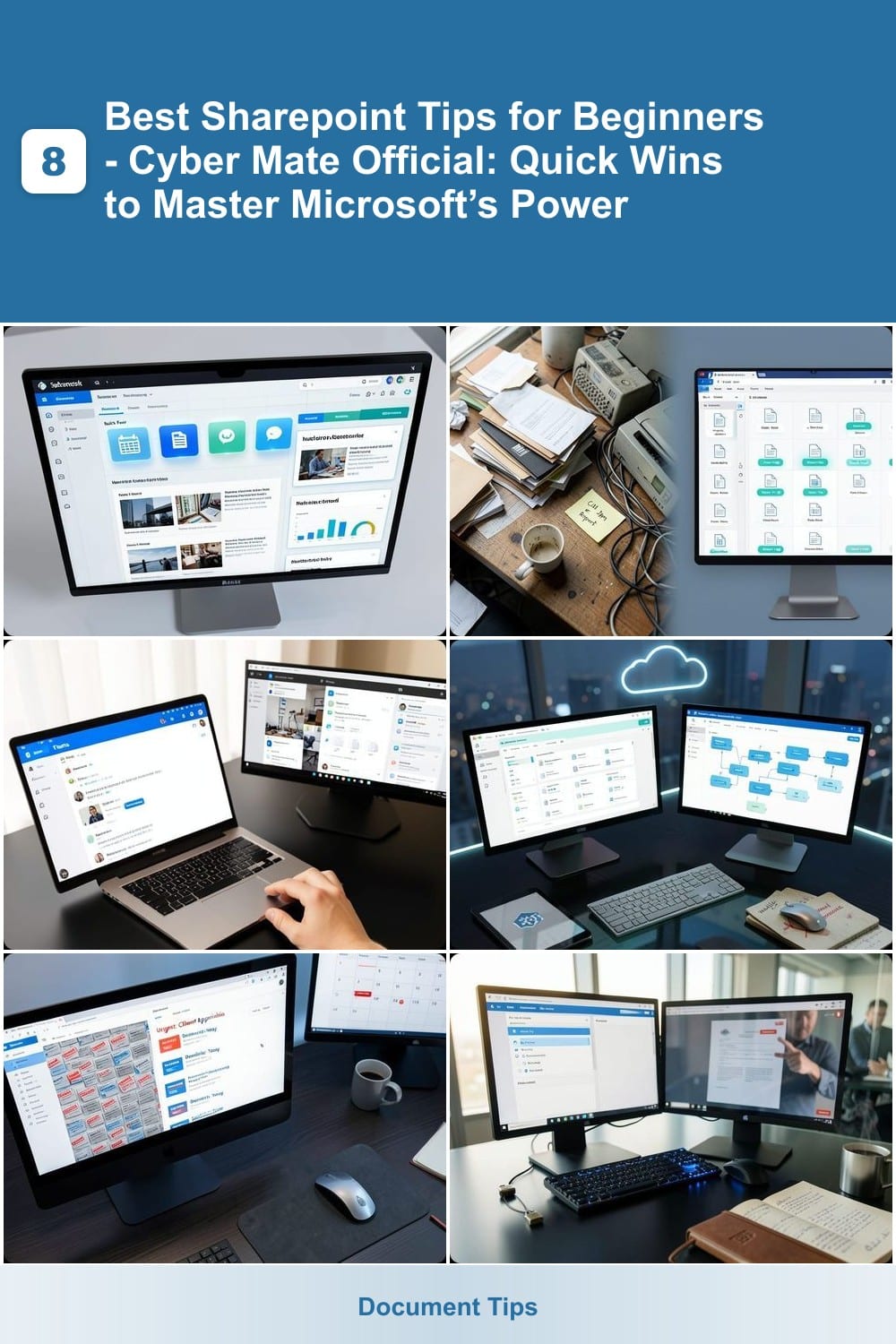
Microsoft SharePoint can feel overwhelming for beginners, but these eight essential tips will help you navigate its powerful features like a pro—without needing advanced training. Discover quick wins to boost productivity, collaboration, and automation in Microsoft’s Power Platform.
Master the Modern SharePoint Homepage Layout
Your SharePoint homepage isn’t just a landing page—it’s your mission control for daily tasks. With the modern SharePoint layout, you can turn clutter into clarity by adding quick links, news feeds, and web parts that put critical resources at your fingertips. Gone are the days of navigating through nested menus to find what you need.
Start by editing your homepage to include pre-built web parts like the News web part (for announcements), Quick Links (for shortcuts to key sites), and Document Libraries (to preview recent files). The search bar can be pinned for instant access, while the site activity feed keeps you updated on team changes. Drag-and-drop customization makes it easy to rearrange elements until your workflow feels seamless.
This is your secret weapon for team leads, project managers, or anyone juggling multiple tasks daily. Spend less time hunting for files and more time getting work done—your future self will thank you. ✨
Use Lists and Libraries for Smart Document Management
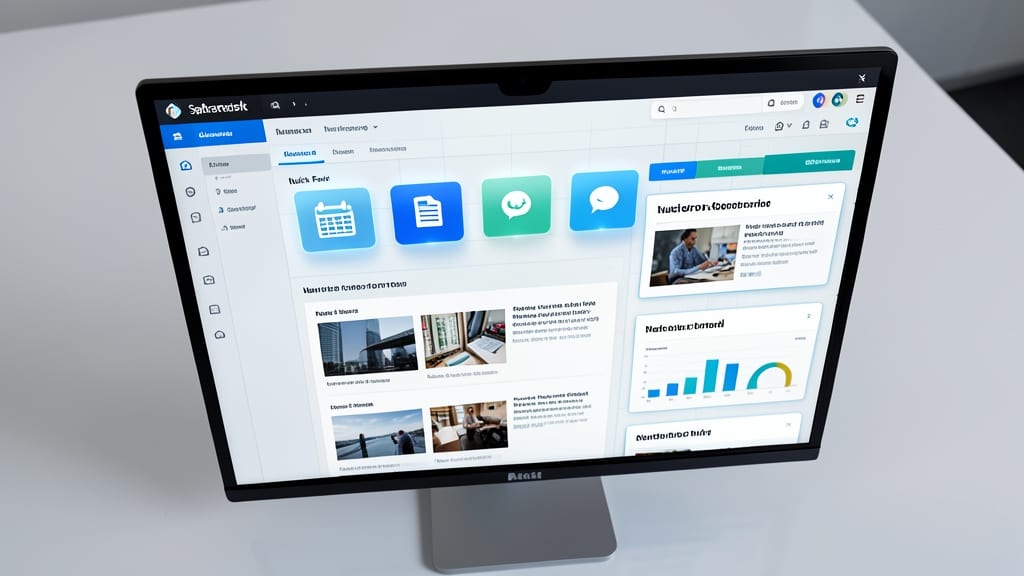
Struggling to find critical files buried in a chaotic folder structure? SharePoint’s Lists and Libraries turn disorganized chaos into a structured workflow—no more digging through endless subfolders. Unlike traditional file storage, these tools let you tag documents with metadata (like project names, deadlines, or owners), so searches return only what you need in seconds.
Enable versioning to track changes automatically, ensuring you never lose a draft or accidentally overwrite a final version. For sensitive data, set retention policies to auto-archive or delete files after a set period—ideal for compliance-heavy industries. Libraries also support co-authoring in Office files, so teams can edit documents in real time without version conflicts.
This is your secret weapon for project managers, HR teams, or anyone drowning in shared drives. Spend less time searching and more time collaborating—your team’s productivity will skyrocket. ✨
Leverage Microsoft Teams Integration for Seamless Collaboration

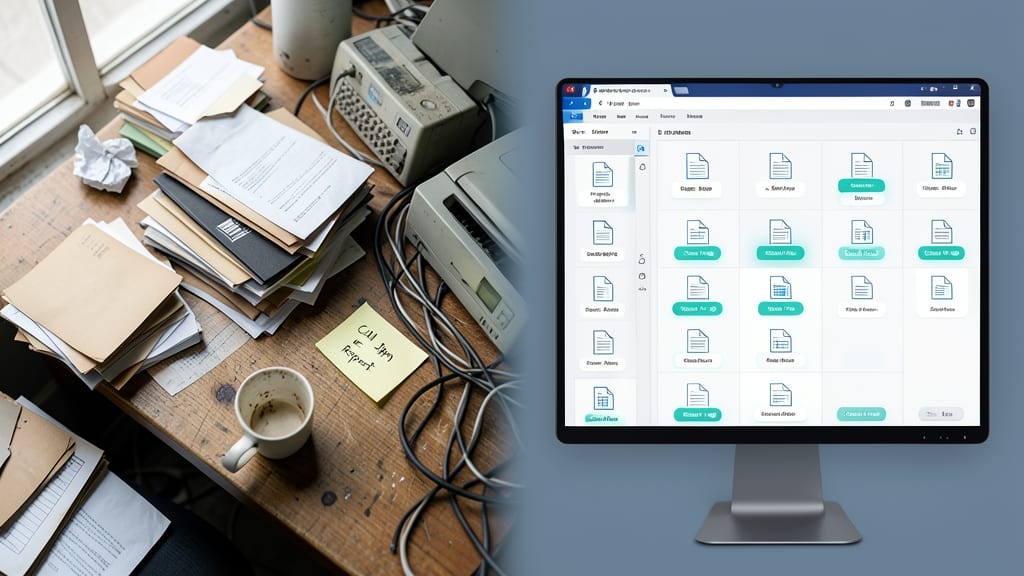
Tired of juggling between SharePoint and Teams tabs? The native integration between Microsoft Teams and SharePoint lets you embed entire document libraries directly into Teams channels, so files and conversations stay linked in one place.
With just a few clicks, you can attach SharePoint libraries to a channel, making it easy for remote teams to access, edit, and discuss files without leaving the chat. The integration also syncs notifications—like file updates or approvals—so your team stays aligned. Plus, co-authoring in Office files (Word, Excel) works seamlessly, even across time zones.
This is a game-changer for hybrid or fully remote teams who need real-time collaboration without the back-and-forth of emails or separate tools. 💻
Automate Repetitive Tasks with Power Automate Flows
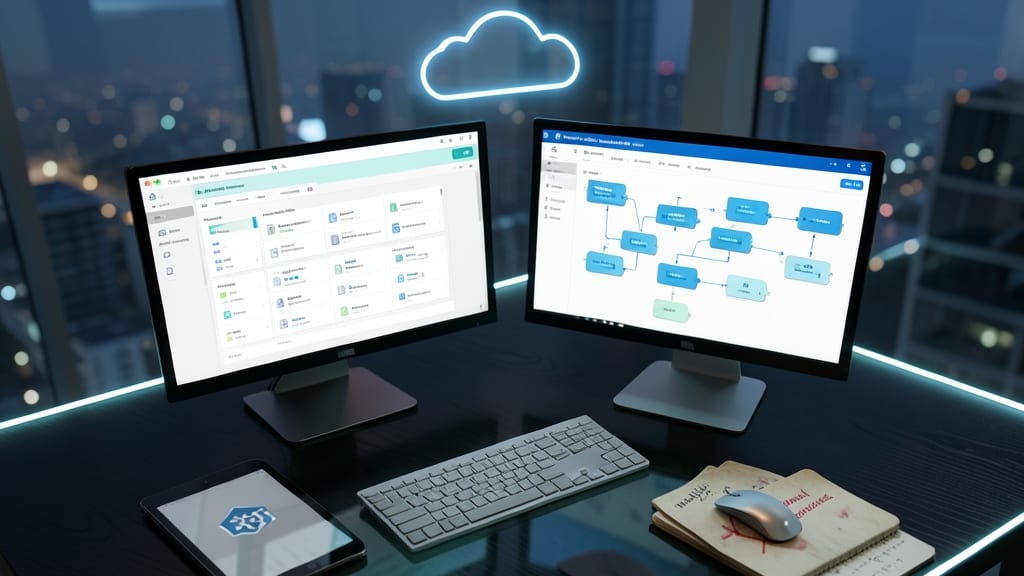
Tired of wasting time on manual tasks like moving files or sending approval requests? Power Automate Flows lets you automate these repetitive tasks with simple drag-and-drop actions—no coding required.
With pre-built templates for SharePoint, you can instantly create flows that trigger when a file is uploaded, send automated notifications, or route approvals to the right person. The visual designer makes it easy to connect actions like "When a new item is added to a list, send an email" or "Move files to a backup folder automatically." Best of all, it integrates seamlessly with Microsoft 365 apps like Outlook, Teams, and Excel.
This is your secret weapon for busy professionals who want to reclaim hours weekly. Start with a simple flow today—your future self will thank you! ✨
Create Custom Views to Filter Information Instantly
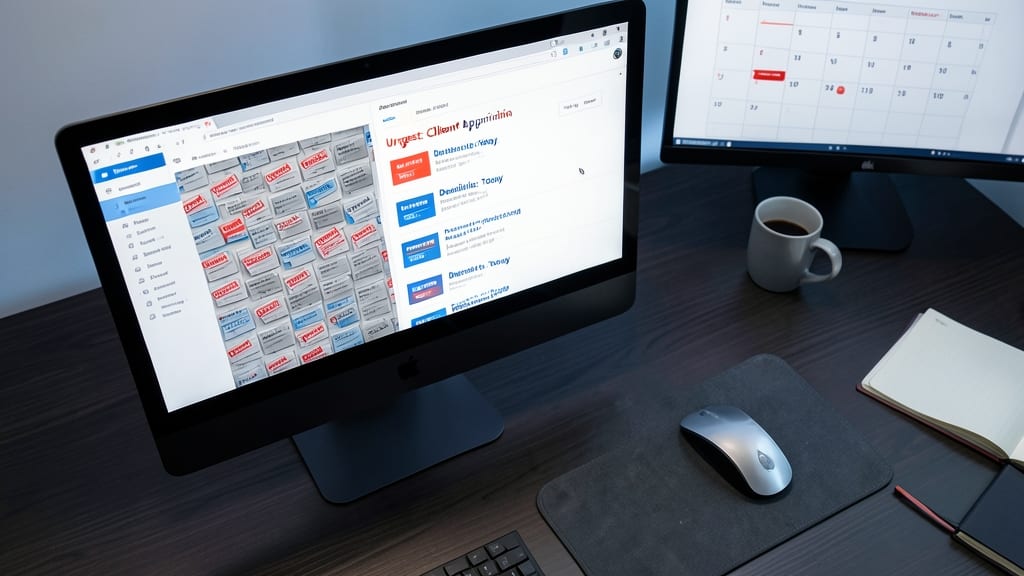
Tired of drowning in endless lists where critical tasks blend into the noise? SharePoint’s custom views let you create laser-focused filters—like "Overdue Tasks" or "My Approvals"—so you see only what matters at a glance. No more scrolling through irrelevant data or missing deadlines buried in the shuffle.
With just a few clicks, you can sort by status, priority, or assigned user, then save these views for instant recall. Need to track only your project’s progress? Build a view showing just your items. Managing a team’s backlog? Filter by "High Priority" and "Assigned to Me" in one snapshot. The best part? These views sync across devices, so your focus follows you—whether you’re at your desk or checking in from home.
This tip is a game-changer for project managers, team leads, or anyone juggling multiple responsibilities. Spend less time searching and more time acting—your future self will thank you. ✨
Secure Your Site with Permission Levels

Ever accidentally shared a confidential document with the wrong team? SharePoint’s permission levels let you control access down to the individual file—no more security surprises. Instead of defaulting to "Everyone Can Edit," assign roles like View Only, Edit, or Full Control to keep sensitive data safe.
Start by navigating to Site Settings > Site Permissions, where you’ll see built-in groups (e.g., Owners, Members). For granular control, create custom permission levels in Site Settings > Site Permissions > Permission Levels. Need to restrict access to a single document? Use unique permissions on libraries or lists—ideal for HR files or project-specific folders.
This is non-negotiable for teams handling client data, financial records, or proprietary info. Set permissions early to avoid cleanup later. 🔧
Use SharePoint Mobile App for On-the-Go Access

Tired of being glued to your desktop just to approve a document or check project updates? The SharePoint Mobile App bridges that gap by letting you edit files, approve tasks, and monitor activity directly from your smartphone—no laptop required.
With offline access (sync changes when back online) and real-time notifications for approvals or comments, you’ll never miss a beat. The app supports Word, Excel, and PowerPoint editing with familiar touch controls, while the site activity feed keeps you updated on team changes. For field workers or executives, this means closing deals or resolving issues while on the go.
Perfect for sales teams, remote managers, or anyone who needs instant access without desktop limitations. ✨
Explore SharePoint Hub Sites for Unified Navigation
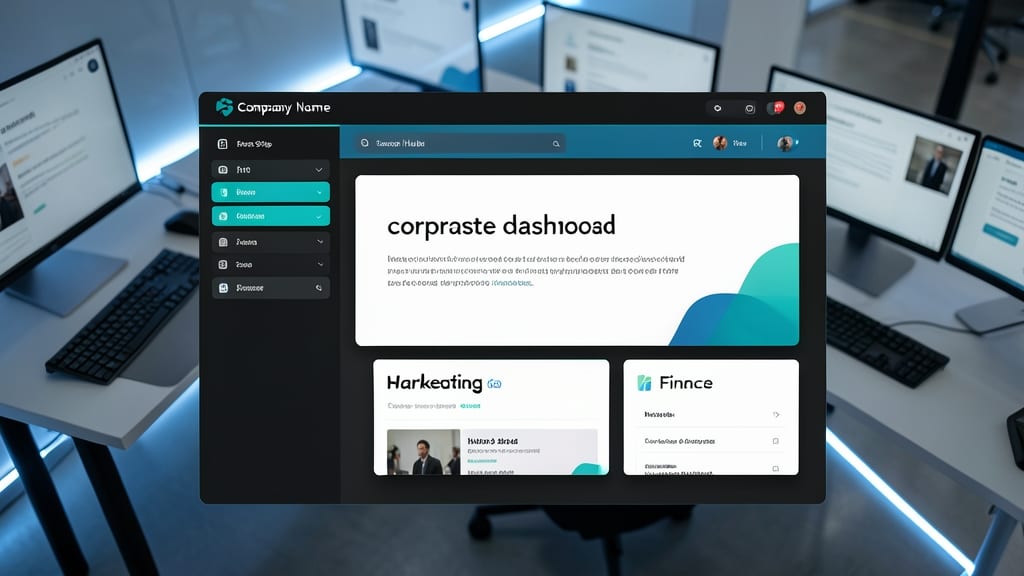
If your organization’s SharePoint environment feels like navigating a maze of disconnected sites, Hub Sites are your lifeline. This feature lets you group multiple sites under a single, branded portal—think of it as a corporate dashboard where all departments (HR, Marketing, Finance) live just a click away.
With Hub Sites, you get unified navigation, consistent branding, and cross-site search—all without requiring users to remember separate URLs. The global navigation bar appears across all connected sites, while news and events roll up automatically. Best of all, it’s zero-config for end users: admins set it up once, and everyone benefits from instant access.
This is perfect for large teams or enterprises where departments operate in silos. Managers and employees alike will love the single sign-on experience that cuts through the clutter. ✨