
Software
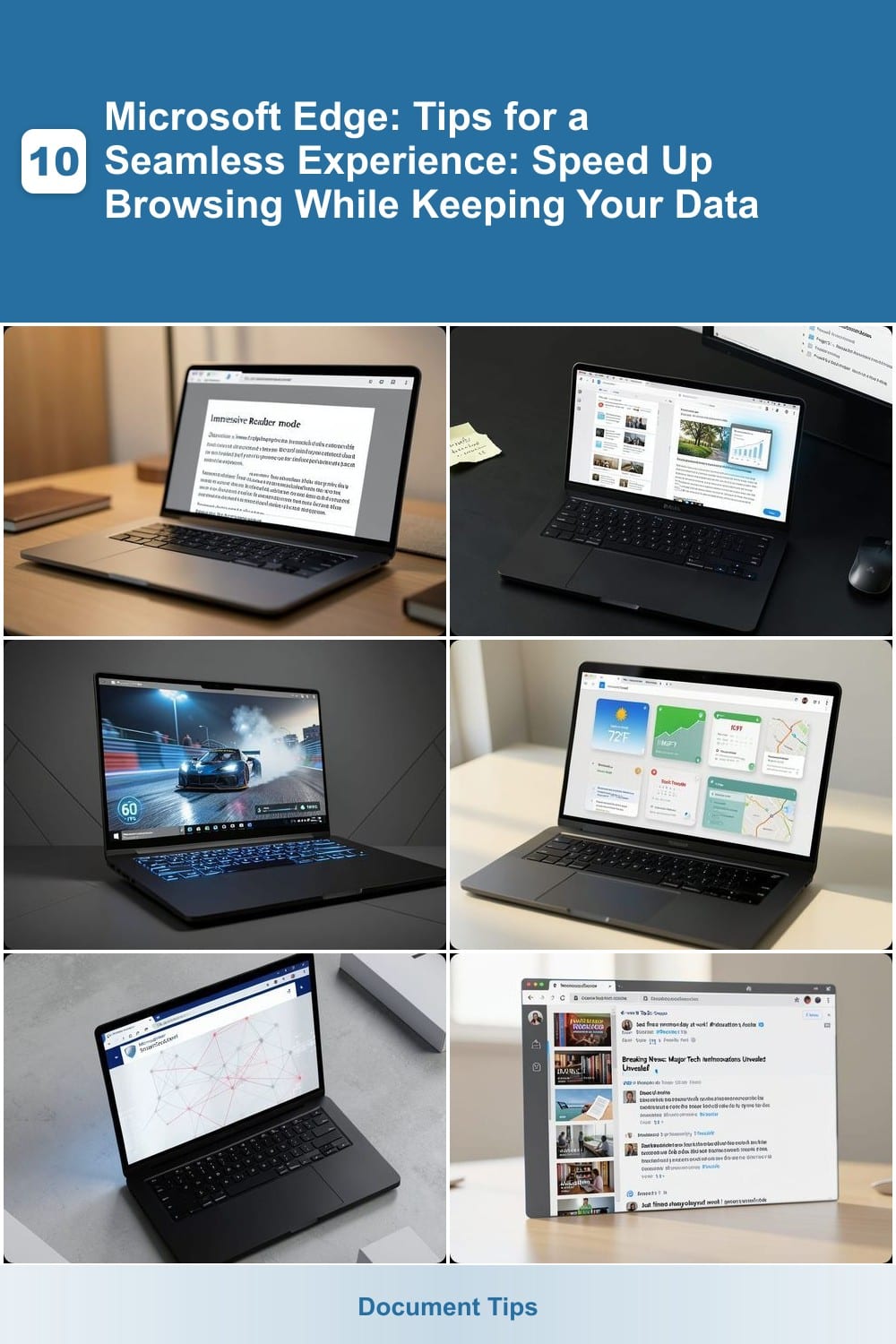
Microsoft Edge is faster, more secure, and packed with productivity features—but only if you know how to optimize it. These seven expert tips will transform your browsing experience, from lightning-fast performance to ironclad security, without sacrificing ease of use.
Enable Edge’s Immersive Reader for Focused Reading
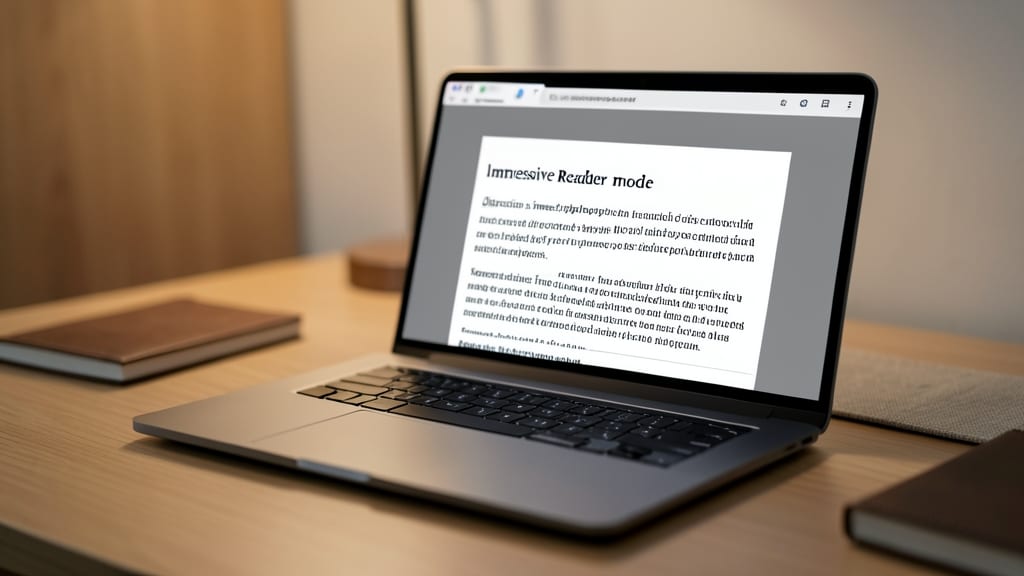
Struggling to focus on long articles or research papers? Microsoft Edge’s Immersive Reader is your secret weapon—it transforms cluttered web pages into a distraction-free, high-contrast reading experience with just one click. This built-in tool strips away ads, sidebars, and complex layouts, replacing them with a clean, customizable interface designed for deep focus.
Adjust font size, spacing, and even text color (light or dark mode) to match your preferences, and tap the language icon to translate content into 80+ languages instantly. The line focus feature highlights one line at a time, reducing eye strain during long reading sessions. For students or professionals wading through dense documents, this tool cuts reading time by up to 30% while improving comprehension.
Perfect for academics, researchers, or anyone drowning in technical manuals—this is the ultimate tool for turning overwhelming text into digestible insights. Your brain will thank you. ✨
Use Collections to Organize Research Like a Pro
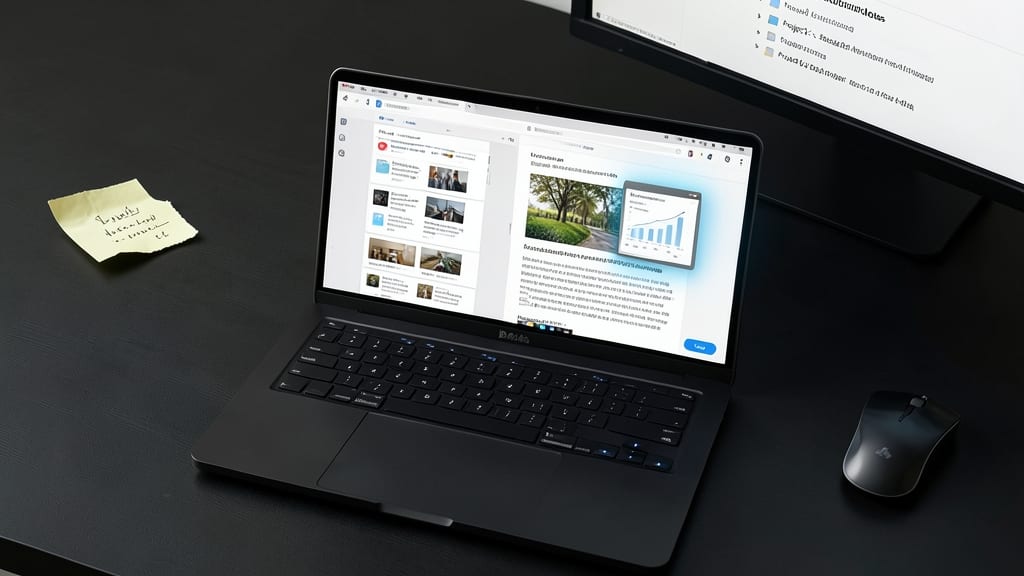
Drowning in research but tired of losing notes between tabs? Microsoft Edge’s Collections feature turns your browser into a searchable digital notebook—no sticky notes or scattered tabs required. Clip text, images, and full webpages in seconds, then organize them into categorized collections for instant recall.
With one-click highlighting and image annotations, you can extract key insights from articles, save screenshots with context, and even add voice notes. The cross-device sync ensures your research follows you, while the built-in search function lets you find clipped content faster than digging through folders. Perfect for students writing papers, journalists tracking sources, or content creators curating ideas.
This is the ultimate tool for knowledge workers who need to stay organized without context-switching. Your research stays in one place—structured, searchable, and always accessible. 💡
Enable Hardware Acceleration for Smoother Video Playback
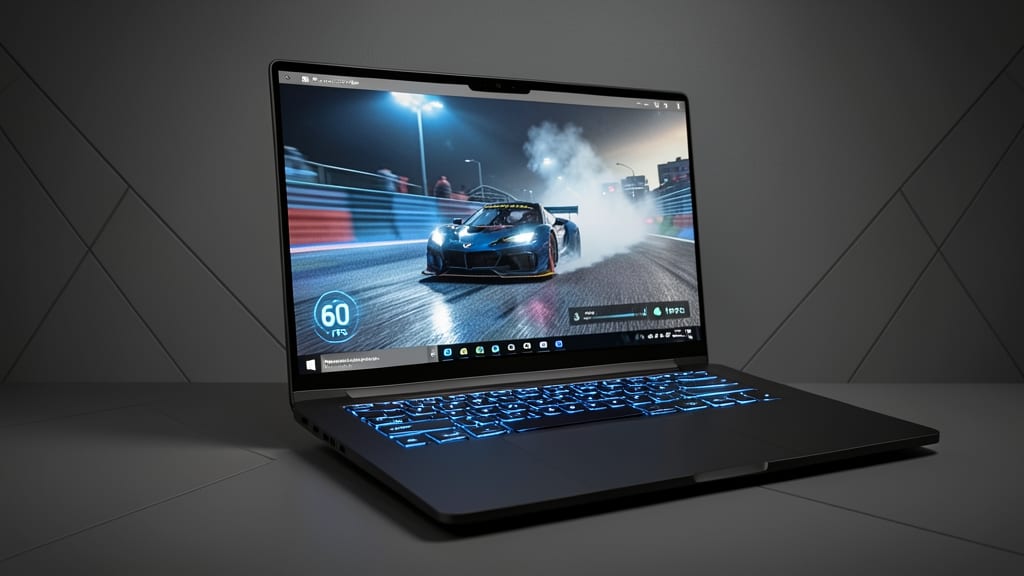
Tired of buffering during your favorite 4K streams or gameplay? Microsoft Edge’s hardware acceleration feature is your secret weapon—it offloads video processing to your GPU, cutting CPU strain by up to 40% and delivering silky-smooth playback, even on mid-range laptops.
To enable it, head to Settings > System > Hardware Acceleration and toggle it on. This works best with DirectX 12 and HEVC/H.265 codecs, so ensure your GPU drivers are updated. Gamers will notice reduced stuttering in Twitch streams, while casual users enjoy seamless YouTube playback without fan noise spikes.
Perfect for anyone with a dedicated GPU—whether you’re streaming, gaming, or just binging shows. Your hardware will thank you. ⚡
Customize Your Start Page with Widgets
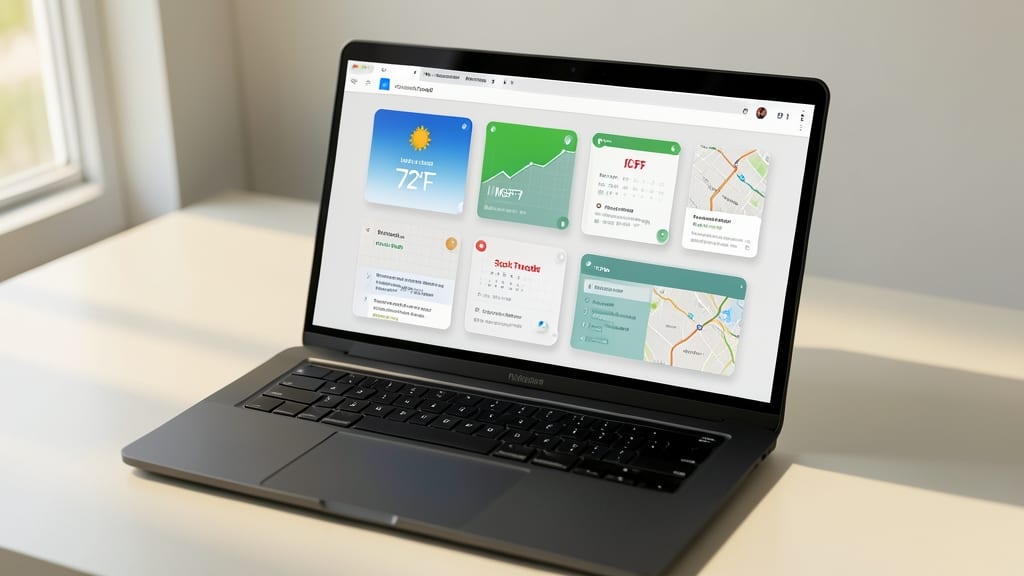
Tired of generic new tab pages that waste your screen real estate? Microsoft Edge’s Start Page widgets let you build a custom dashboard with zero extensions—just drag and drop. Add a live weather forecast, stock tracker, or calendar events directly to your new tab, so you never miss a beat.
You can mix and match from built-in options like news briefings, to-do lists, and Google Maps integration, all synced across devices. The setup takes minutes, and unlike third-party tools, these widgets update automatically without bloating your browser. Perfect for professionals who want their browser to work for them, not against their workflow.
This is ideal for remote workers or creatives who juggle multiple tasks—turn your new tab into a mission control hub where everything you need is just a glance away. ✨
Block Trackers with Microsoft Defender SmartScreen
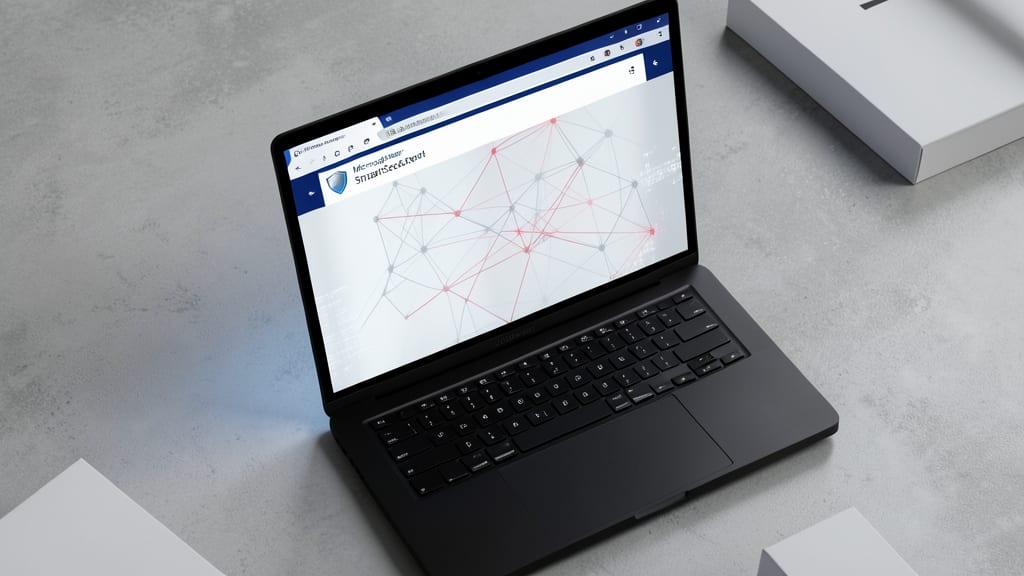
Tired of websites silently tracking your every move? Microsoft Edge’s Microsoft Defender SmartScreen blocks hidden trackers—like ads, analytics scripts, and fingerprinting tools—without breaking legitimate sites. It’s privacy protection built right into your browser, with zero extra steps.
This feature scans over 10,000 websites daily to identify and block trackers, reducing data collection by up to 80% while keeping your browsing smooth. You can even customize the level of blocking—from basic to strict—to balance security and functionality. No extensions or manual tweaks required!
Perfect for privacy-focused users, remote workers, or anyone concerned about digital footprints. Your data stays yours—no sneaky scripts needed. ✨
Speed Up Tabs with Vertical Tab Groups
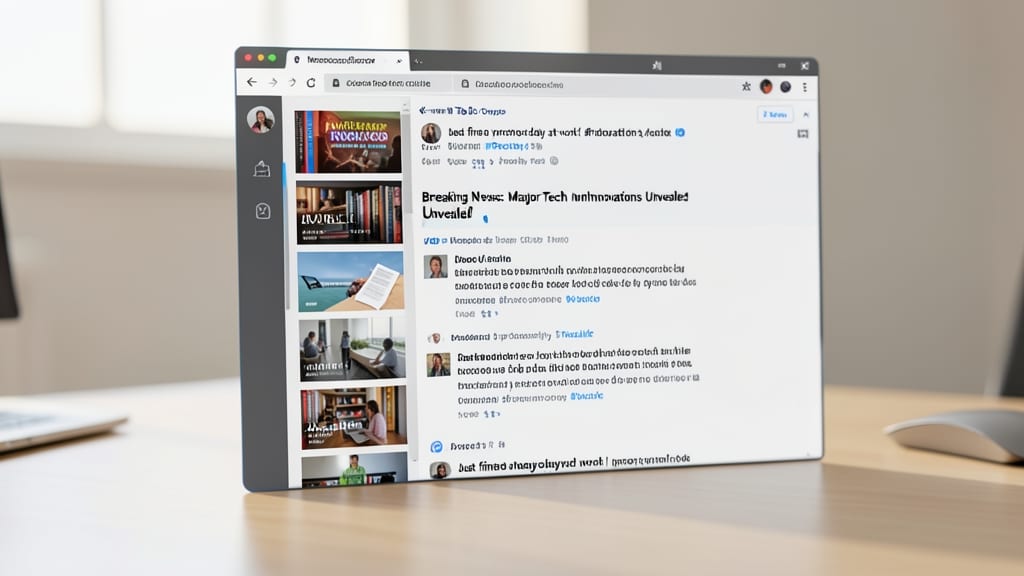
If your browser tabs are piling up like a digital landfill, Microsoft Edge’s Vertical Tab Groups feature is your lifeline. This sleek sidebar organizes tabs into collapsible groups, transforming chaos into a tidy, clickable list—no more squinting at a horizontal scroll bar crammed with 20+ tabs.
Enable it by right-clicking any tab, selecting "Add to Vertical Tab Groups," and assigning it to a category like Work or Shopping. Drag tabs between groups with one click, or pin favorites for instant access. The sidebar stays hidden until you hover, saving precious screen space while keeping everything just a mouseover away.
Perfect for developers juggling code repos, researchers tracking sources, or anyone drowning in open projects—this feature turns tab overload into a streamlined workflow. ⚡
Sync Your Passwords Across Devices Securely
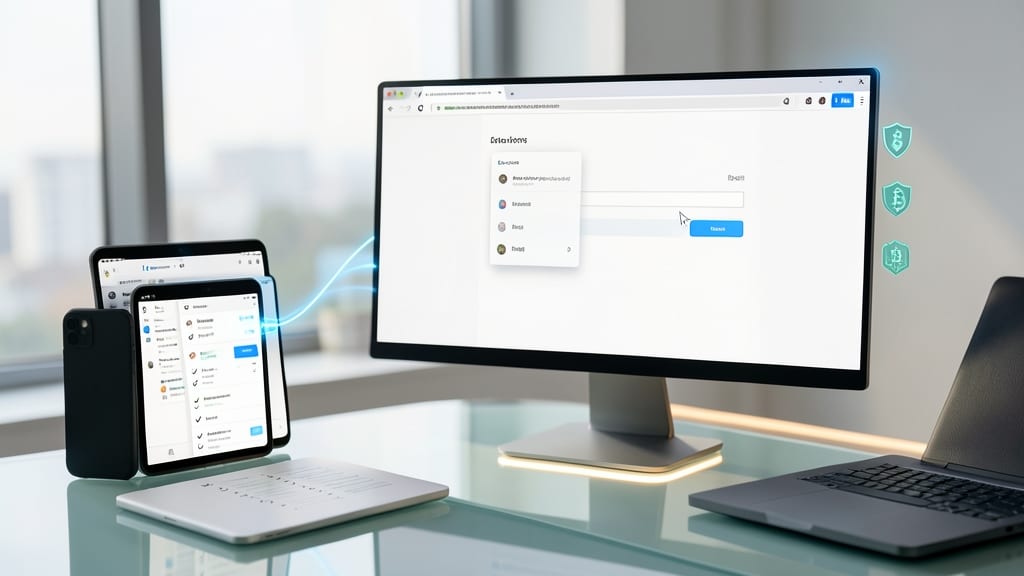
Tired of typing the same passwords across your phone, tablet, and laptop? Microsoft Edge’s built-in password manager solves this with one-click auto-fill and military-grade encryption, so your logins stay secure while saving you time. Unlike third-party tools, it works natively within Edge—no extra apps or sync headaches.
The manager stores passwords locally by default (for maximum privacy) but syncs seamlessly across Windows, macOS, iOS, and Android when you enable Microsoft account integration. It also generates strong, unique passwords for new accounts and flags weak or reused credentials. The zero-config setup means you’re protected from day one—just enable it in Edge’s settings and start saving.
This is a game-changer for remote workers, freelancers, and anyone juggling multiple devices. No more sticky notes or browser-based password dumps—just instant, secure access everywhere. ✨